Reading Lists
CLU supports importing reading lists from multiple sources, as well as creating your own and sharing them.
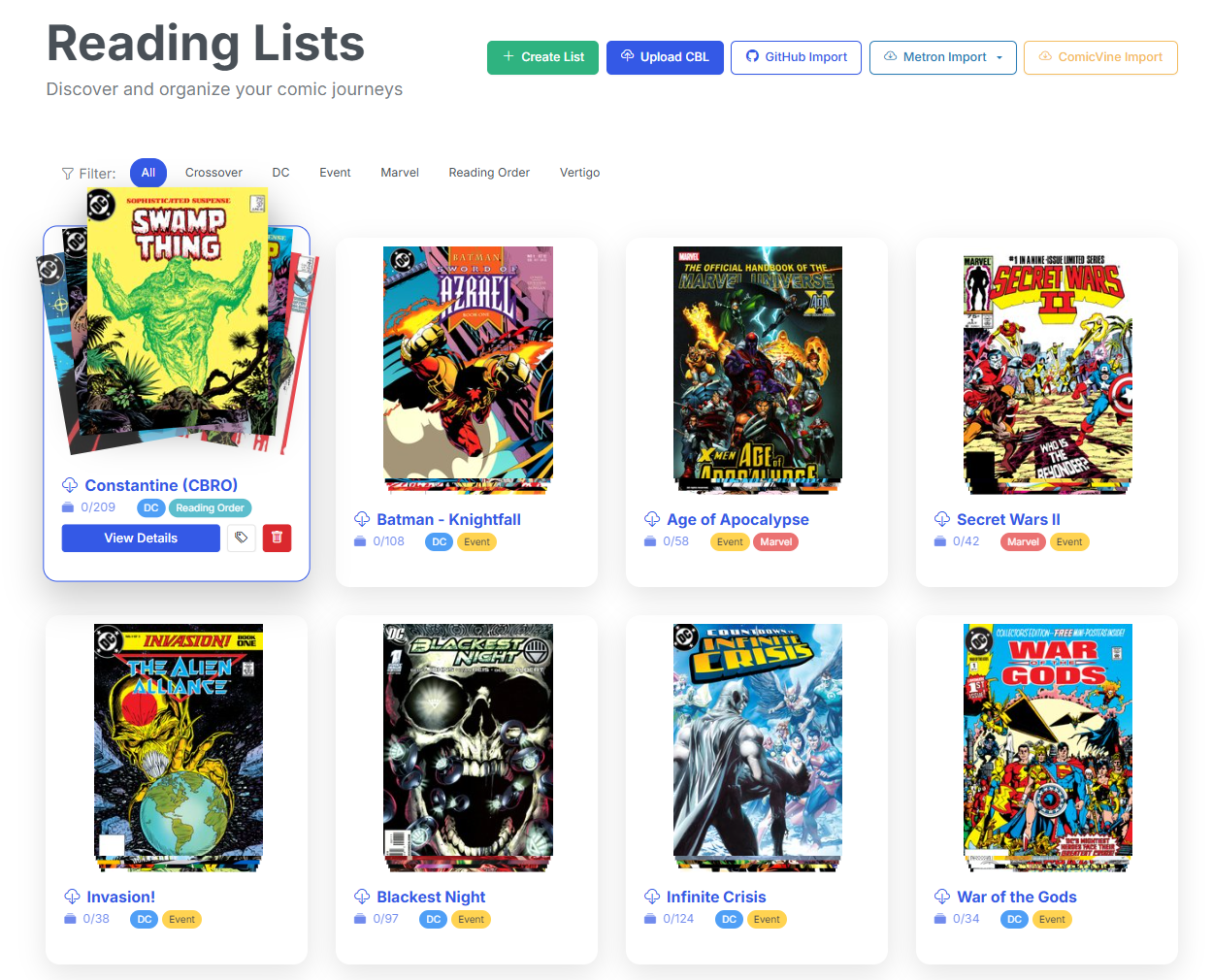
Reading Lists Page
Importing Reading Lists
You can import reading lists from the following sources:
- DieselTech GitHub Repository — Browse and import from a curated collection of CBL reading list files
- Import by URL — Paste a GitHub URL to a
.cblfile - Upload CBL File — Upload a local
.cbl(ComicBookLover) XML file directly - Metron Reading Lists — Import curated reading lists from the Metron database. Note: most of these are imported from the DieselTech GitHub Repository
- Metron Story Arcs — Import story arcs from Metron as reading lists. Note: these are user created, based on Publisher Story Arcs.
- ComicVine Story Arcs — Import story arcs from ComicVine as reading lists
GitHub Repository Browser
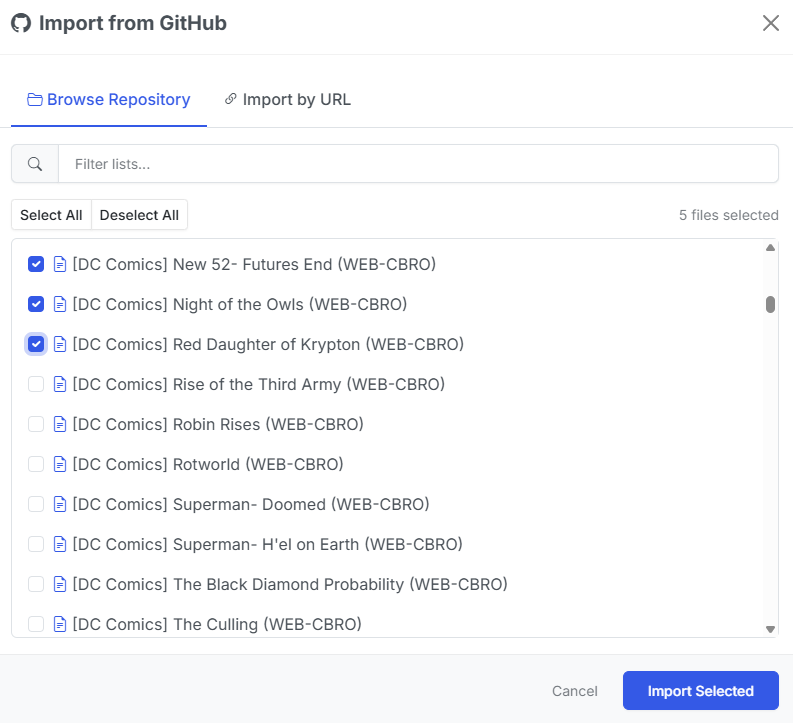
GitHub Import Modal
Click GitHub Import to open the import modal. The Browse Repository tab loads the full file tree from the DieselTech/CBL-ReadingLists repository (cached for 30 minutes).
- Use the filter input to narrow the file tree by keyword
- Select individual
.cblfiles using the checkboxes, or use Select All / Deselect All - The selected file count updates as you check items
- Click Import Selected to begin a batch import
Each selected file is downloaded and processed in the background. Up to 5 imports run concurrently — the rest are queued. Progress for each import is tracked and displayed.
Import by URL
Switch to the Import by URL tab to paste a direct link to a .cbl file on GitHub. CLU automatically converts GitHub blob URLs to raw content URLs for download.
Upload CBL File
Click Upload CBL to upload a .cbl or .xml file from your local machine. The file is parsed and imported in the background.
Metron Import
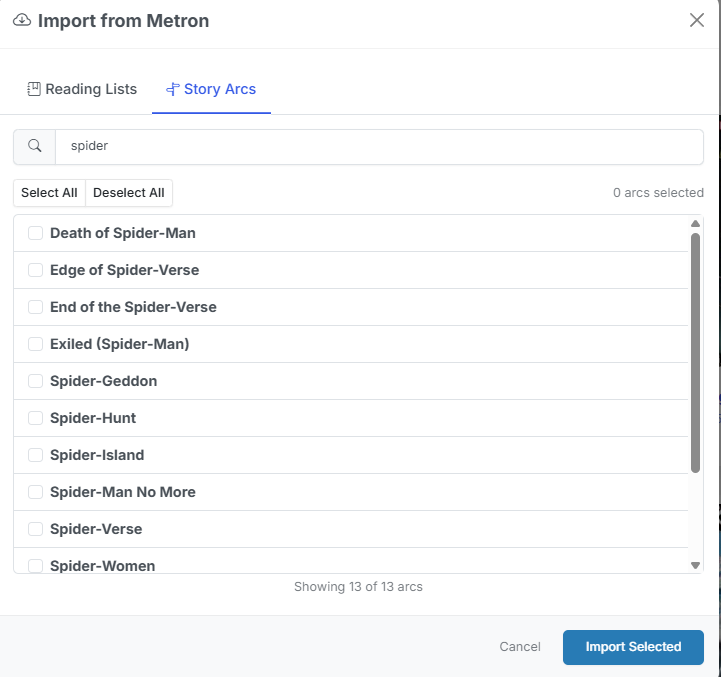
Metron Import Modal
Click Metron Import to open the Metron import modal. Two tabs are available:
- Reading Lists — Search and browse Metron's curated reading lists by name. Select one or more lists and click Import Selected. Each list's description, issue order, and metadata are preserved.
- Story Arcs — Browse Metron's story arcs with infinite scroll pagination. Select arcs and import them as reading lists. Arc issues are ordered by their arc sequence number.
Metron credentials must be configured in Settings > Metadata Providers before importing.
ComicVine Import
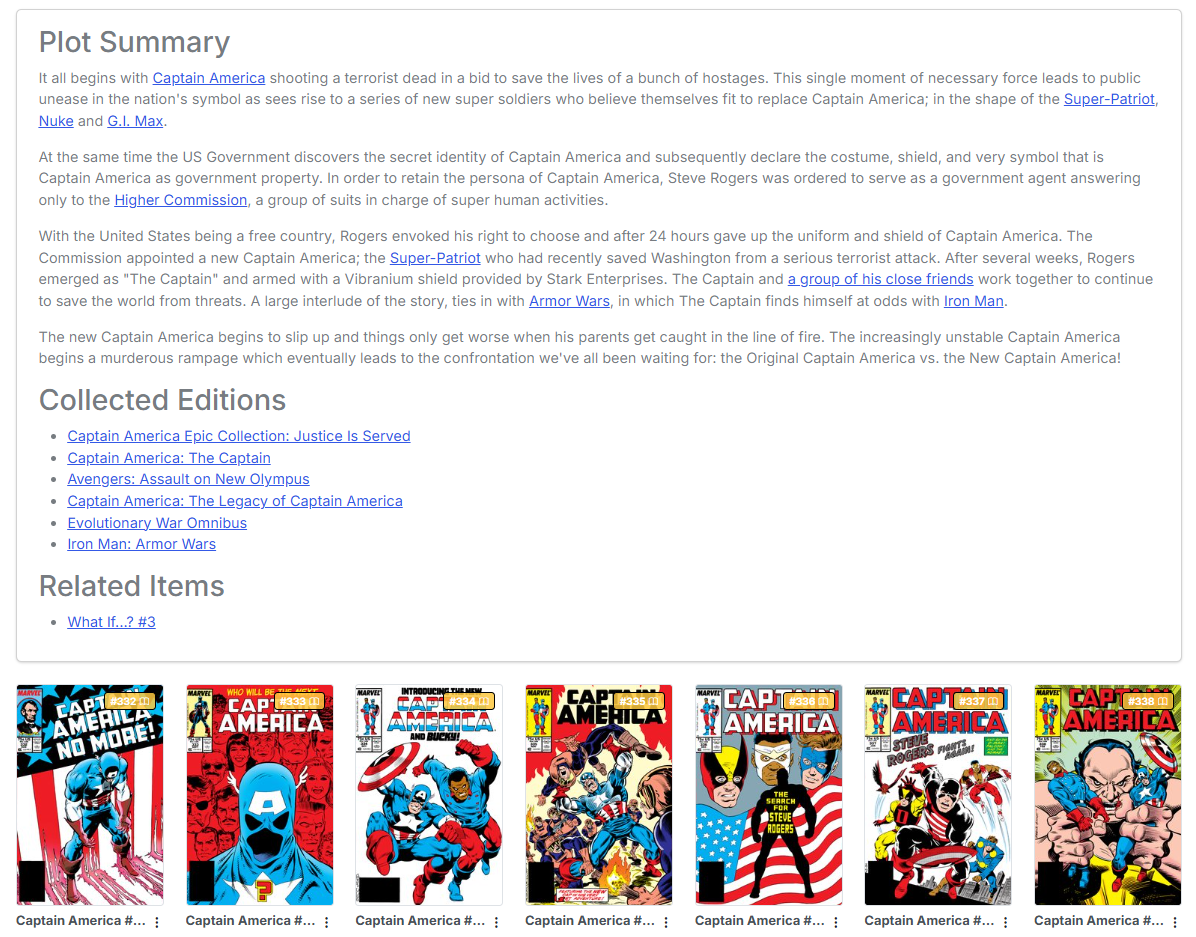
Reading Lists imported from ComicVine have additional details and can contain links
Click ComicVine Import to search and browse story arcs from ComicVine. Select one or more arcs and click Import Selected. A ComicVine API key must be configured in Settings > Metadata Providers.
Global Reading List Features
The following features are available for all reading list imports:
Browsing Reading Lists from Providers
When browsing Metron or ComicVine imports, the modal provides:
- Search input — Filter results by name as you type
- Select All / Deselect All — Bulk selection controls
- Selected count — Displays how many items are currently selected
- Infinite scroll — Story arcs load additional pages as you scroll (Metron arcs)
Filter and Search
On the main Reading Lists page, if any lists have tags assigned, a tag filter bar appears at the top. Click a tag to filter the grid to only lists with that tag, or click All to show everything.
Import Status
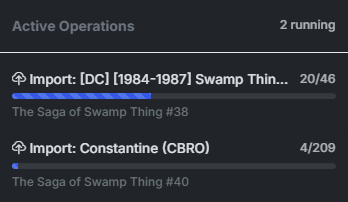
When importing reading lists, the import status is displayed in the header. The status includes:
- Importing — The reading list is being imported
- Count — The number of items imported / the number of items remaining
- Progress Bar — The progress of the import
- Current Issue — The current issue being imported
Create a Reading List
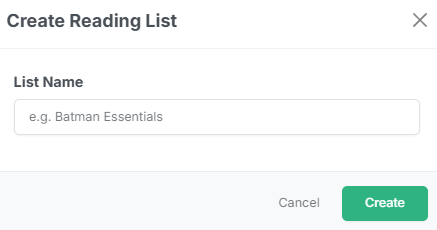
Click Create List on the Reading Lists page. Enter a name for the new list in the modal and click Create. The empty list is created immediately and you can begin adding issues to it.
Adding Issues to a Reading List
There are two ways to add issues to a reading list:
Add Via Search
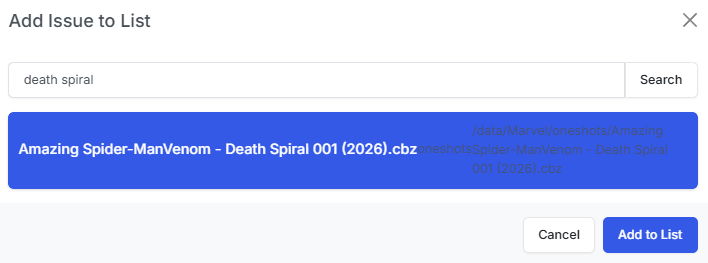
Open a reading list and click the Add Issue button. This opens a search modal where you can:
- Type a search query in the input field (searches your CLU file index)
- Browse the results — each result shows the file path
- Click a result to select it
- Click Add to List to add the issue
Add Via Browser
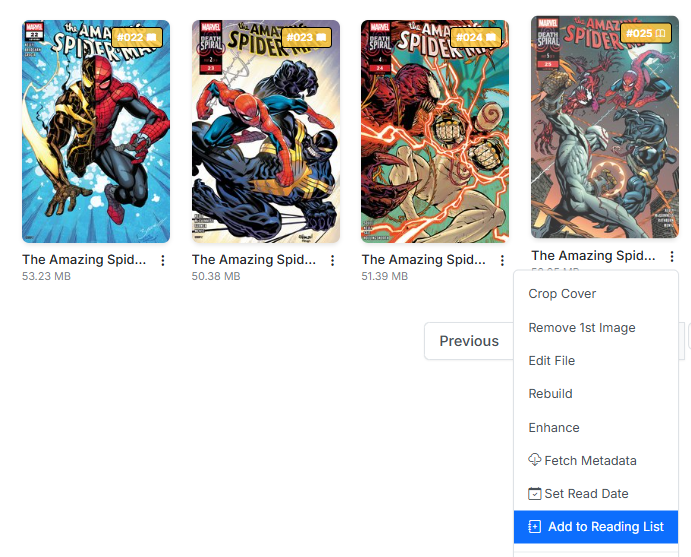
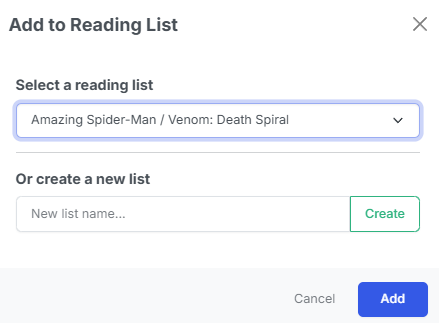
Anywhere you can view an issue, you can add it to a reading list by clicking the Add to List button in the issue's three-dot menu.
This will open a modal allowing you to select the reading list to add the issue to.
Adjusting the Reading Order of Issues
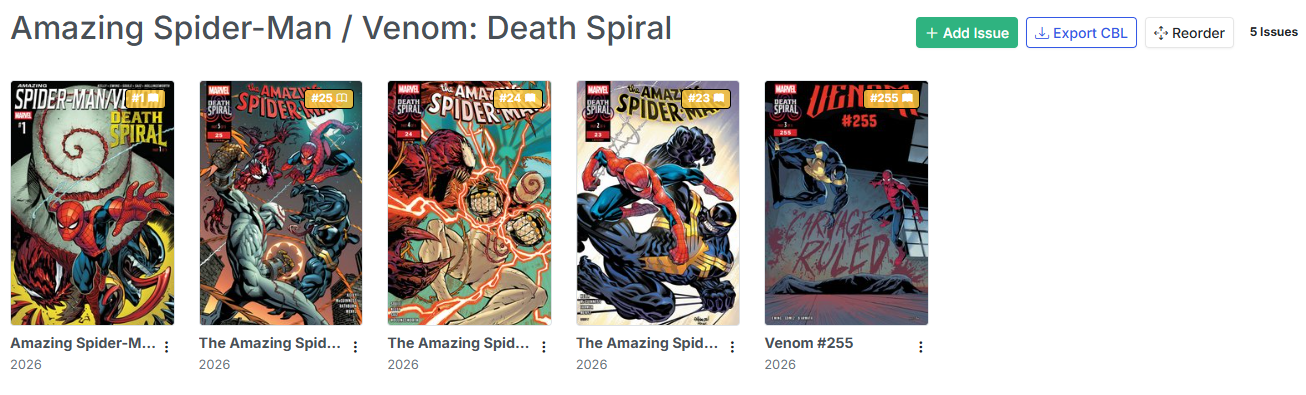
Click the Reorder button in the reading list detail view to enter reorder mode. In this mode:
- The grid switches to a drag-and-drop interface
- Drag issue cards to rearrange them in the desired reading order
- Click Save Order to persist the new order
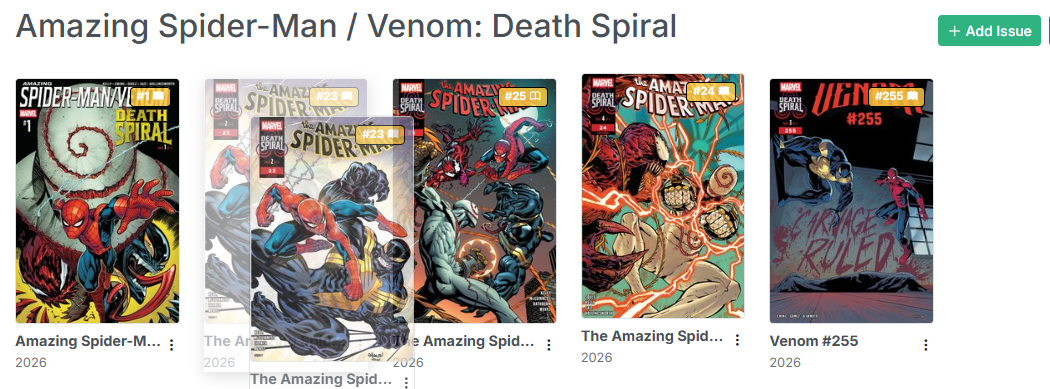
The new order is saved to the database and reflected everywhere the list is displayed.
Mapping Missing Issues
Issues can also be matched after import.
For imported lists where an issue was not automatically matched to a local file, click the issue's cover (which shows a "Click to map" placeholder) or use the three-dot menu and select Map Issue to search for and link a local file.
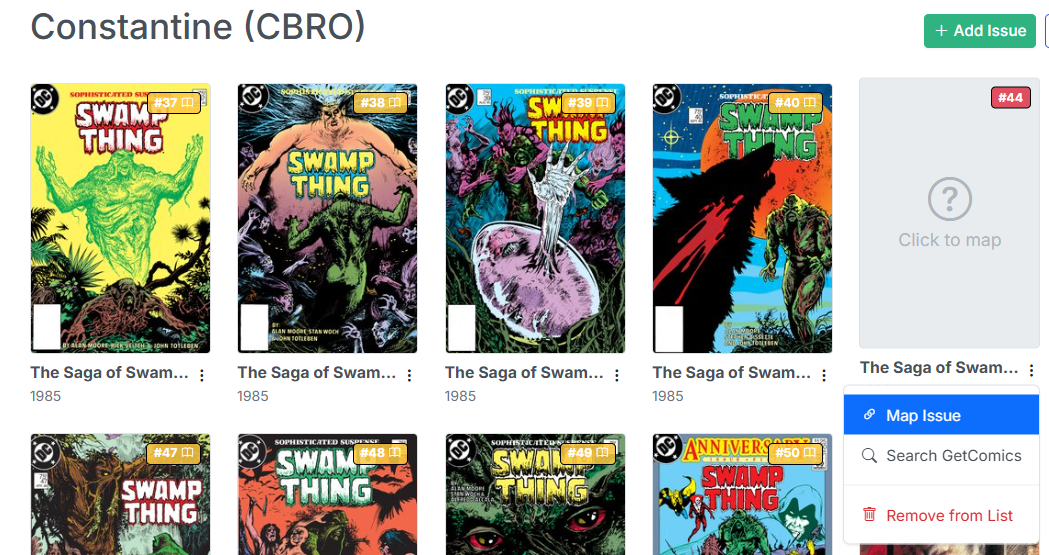
For example, this Constantine reading list is missing an issue of Swamp Thing before it was renamed.
Additionally, you can search GetComics for the missing issue and download it to your CLU Downloads folder. Once downloaded, it will be automatically added to your CLU file index and you can map it to the reading list.
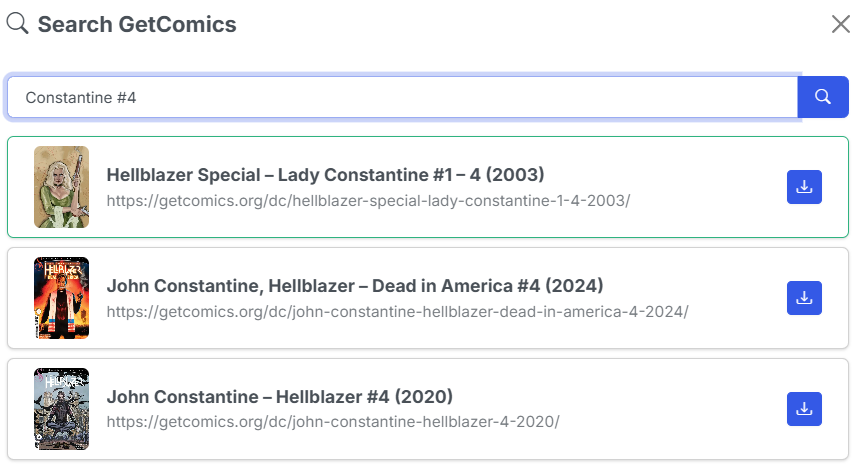
Here we are searching for a missing issue.
Managing Tags
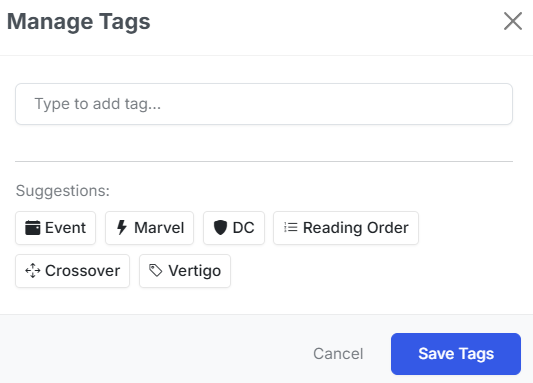
Use the Tags button on each reading list card to open the tag manager. You can:
- Type to add new tags with autocomplete suggestions from existing tags
- Click predefined tag suggestions
- Remove tags by clicking the X on each tag badge
- Tags are used for filtering on the main Reading Lists page