Collection Browsing (Series)
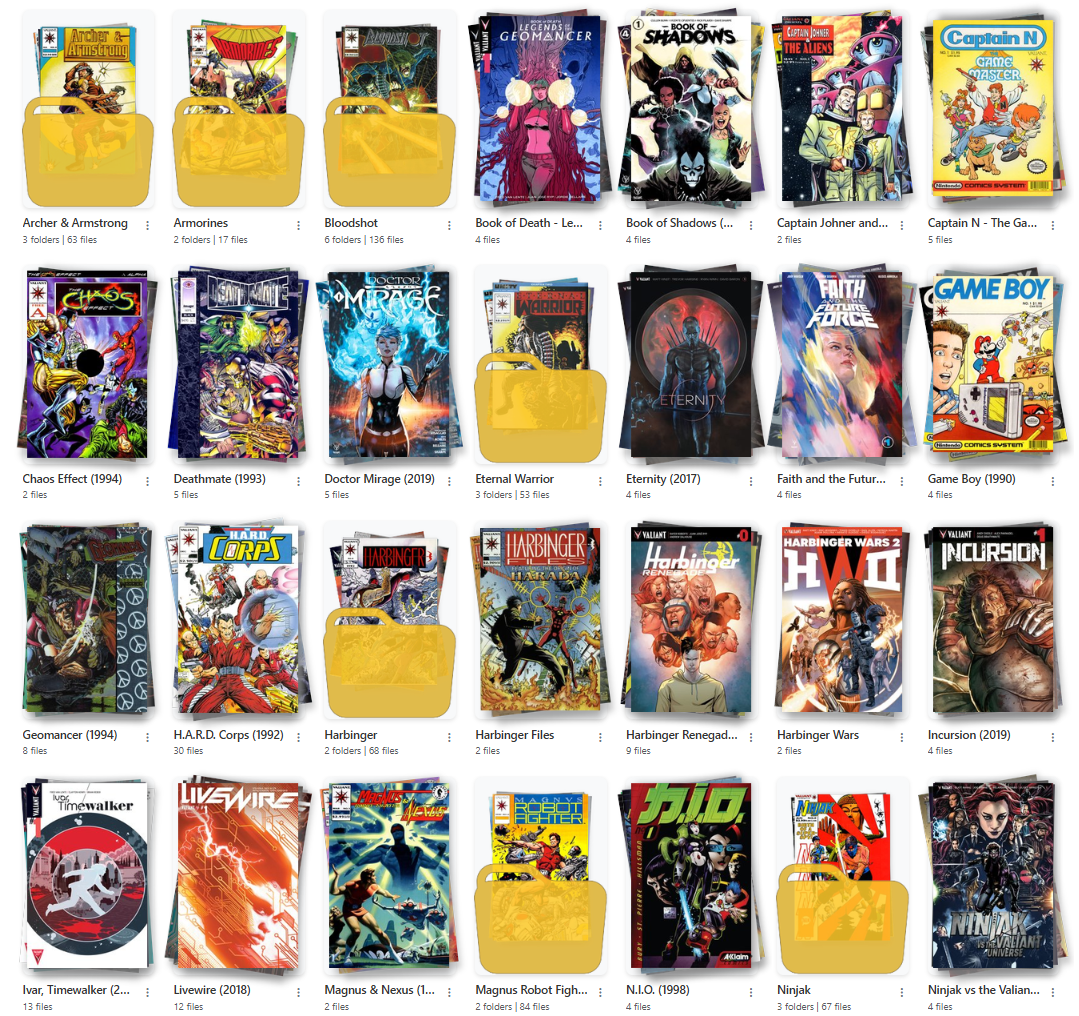
Example Collection Series Page
Once you navigate within a publisher, you will see a list of folders (series) or issues in that publisher.
Series Options
For a series folder (any folder that is non-root / non-publisher), there are 3 options in the dropdown menu that can be accessed by clicking the menu.
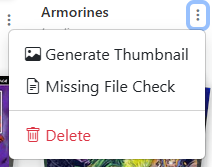
Example Series Dropdown Menu
- Generate Thumbnail: This will generate thumbnails for all folder that are missing a thumbnail.
- Missing File Check: This will check for missing files in the folder based on the Directory Features Missing File Check.
- Delete: This will delete the folder and all files in it. You will be prompted to confirm this action.
Generating Thumbnails
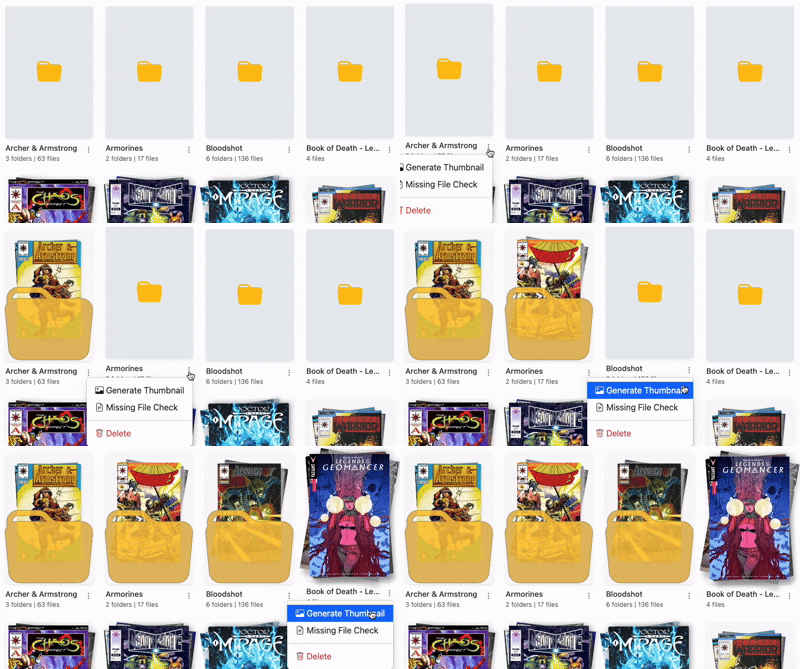
Example of Generating Thumbnails
To generate thumbnails for a series, click the menu and select "Generate Thumbnail". This will generate a thumgnail for the folder based on it's contents.
- Folders with a single file will use that file as the thumbnail.
- Folders with multiple files will use the up to the first 4 files to generate a fanned "stack" of comics. The first file will be the top of the stack, and the last file will be the bottom of the stack. The rotation of the files is random to prevent the same orientation from being used for all folders.
- Folders with multiple folders will use a similar process to generate a thumbnail, but the "stack" of comics will be "inside" a folder icon. The first image from up to 4 folders will be used to generate the thumbnail.
Mark a Series as "Want to Read"
You can mark a series as a "Want to Read" by clicking the icon in the top left of the series list. This will add the series to the "Want to Read" section on the collection page, allowing you to quickly access the series from the collection page or the OPDS feed.