Additional Features
Directory Filtering
For any directory that has more than more than 25 folders, you can now start typing to filter the list. This does not search within the directories, this just quickly narrows down your results.
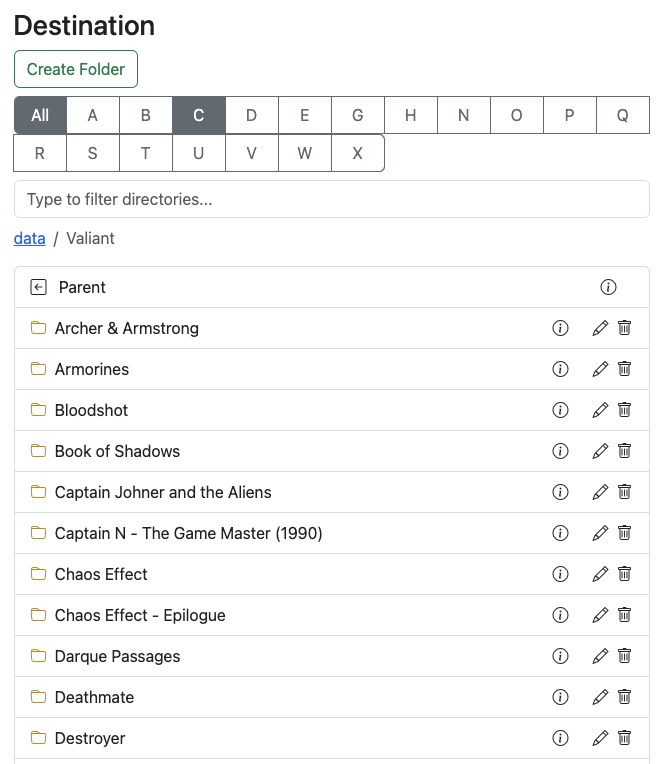 |
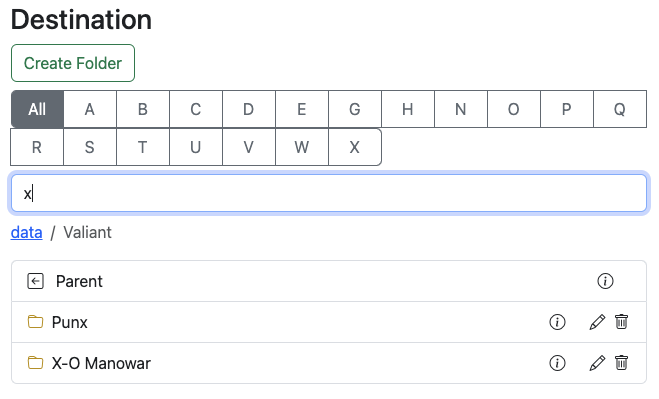 |
|---|---|
Search
Search your Comic folders to see if you have a particular issue or to see if you want to look for a better file.
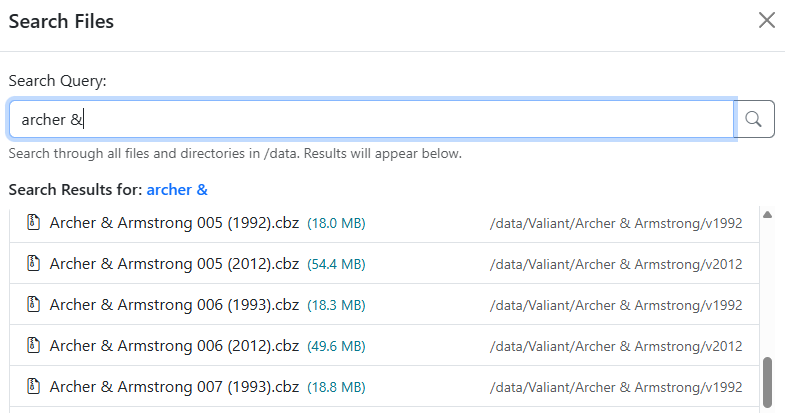
When you start the app, all files and folders will be indexed and saved to the database. Timing on this will be dependent on your library. During testing, a library with 110,000 files indexed in about 12-minutes.
When files and folders are moved, the app will add/update/delete them in the database.
See the File Index Management section on App Settings for more details and to manually re-index your library.
This searches you entire '/data' library, but ignores the 'TARGET' folder if you are using folder-monitoring
Upload Files
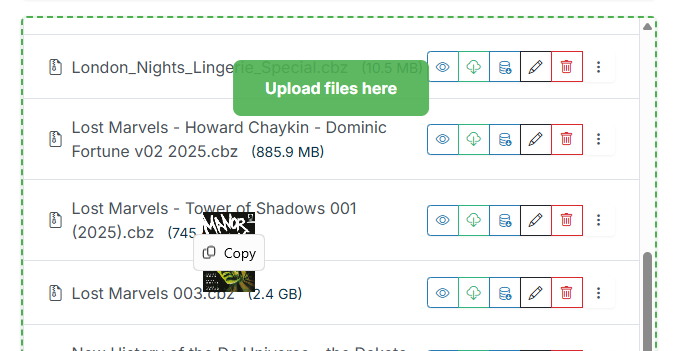
You can drag and drop a single file or multiple files to upload them to the currently visible Source or Destination directory
Recent Files
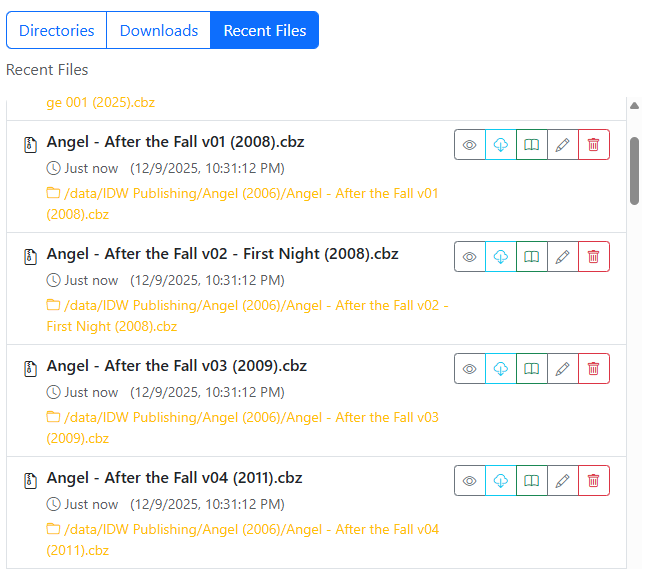
Clicking the "Recent Files" button will show the last 100 files that have been added (or moved) withing you collection. This is useful for seeing new downloads.
This provides results from your entire '/data' library, but ignores the 'TARGET' folder if you are using folder-monitoring
File & Folder Sizes
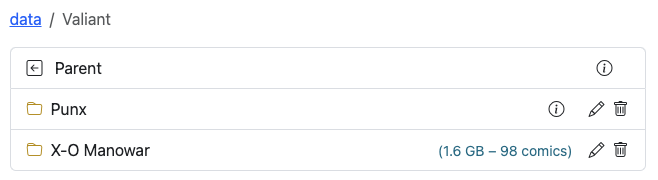
When viewing folders, you can click the info icon and CLU will scan the folder and return the size and file count. This is done on request, as providing that data in the list would increase load time significantly.
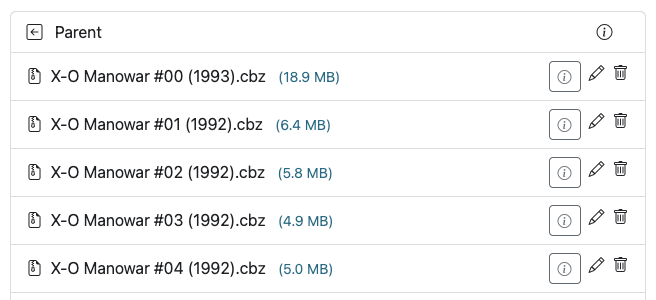
When browsing files, you'll also see file size next to each file. This allows you compare two files, allowing you to see if a newer file was larger / better quality than an existing file.
View Cover, Meta-Data and ComicInfo.xml
Additionally, you'll see a new info icon next to all comics as well. Clicking this will open a modal window and the cover, meta-data and ComicInfo.xml data (if available) will be displayed.
Using the <— Prev and Next --> buttons, you can quickly view details for multiple issues.
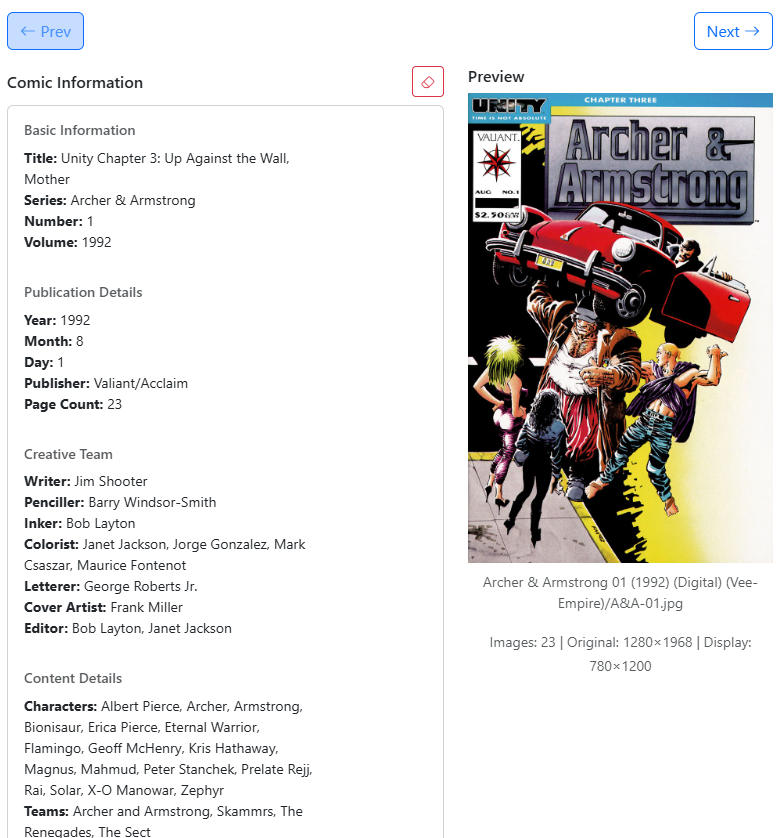
For any comic that has a valid 'ComicInfo.xml' file, you'll also see a icon that will let you clear the comic info for that file. This is useful if the metadata is incorrect or incomplete.
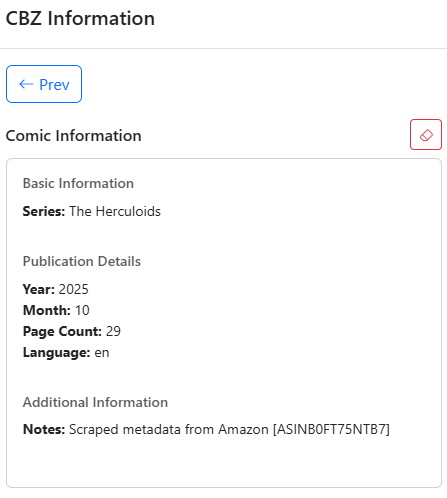
After clicking the icon, you'll be asked to confirm you want to delete the metadata. Clicking Yes, will unpack the file, delete the XML and re-pack the file.