File Processing Settings
All settings related to file moving, renaming and processing are updated in this section.
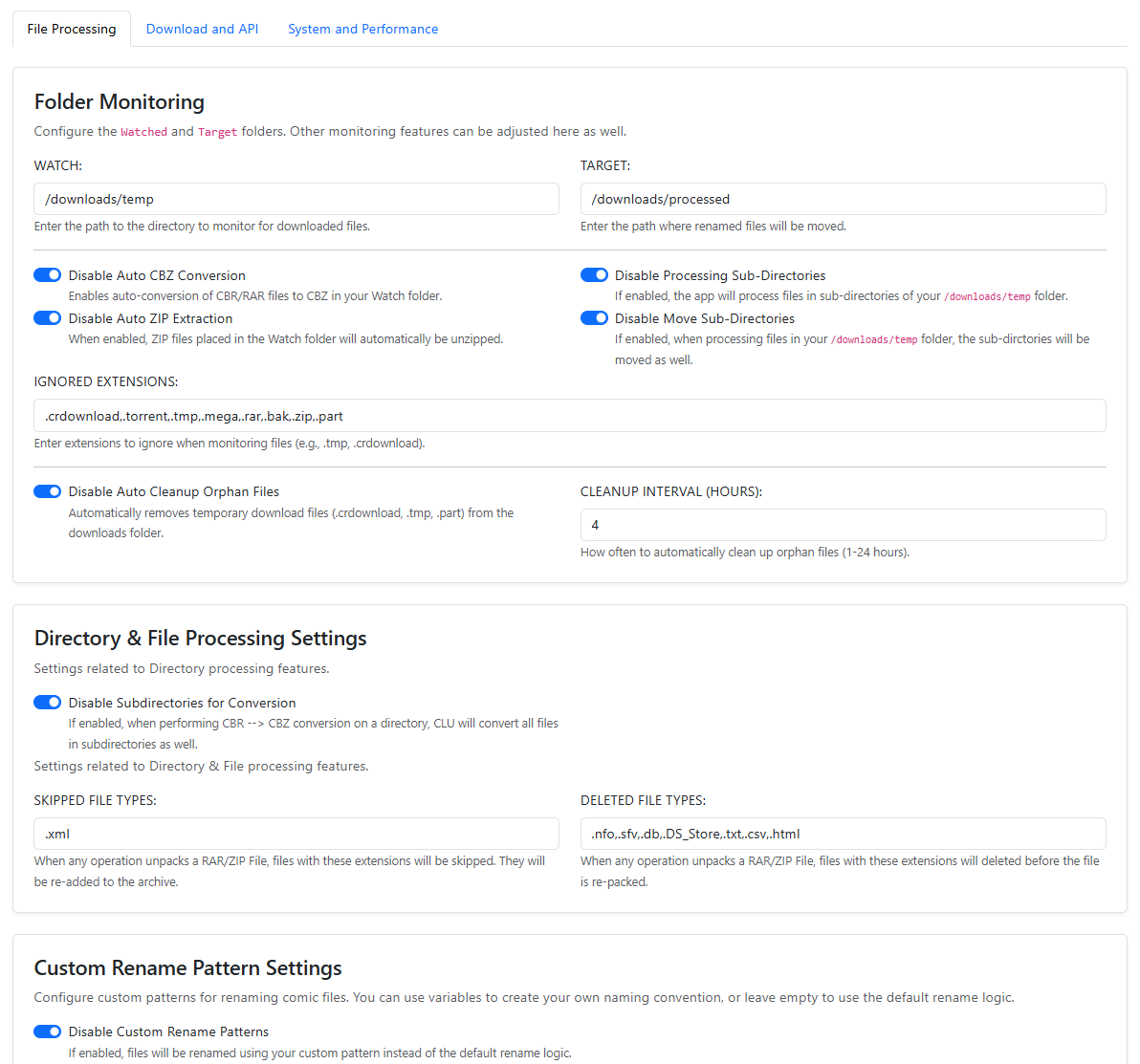
Folder Monitoring
This is the most extensive set of features and will only be applicable if folder-monitoring is enabled. Most of these feature flags enhance the previous feature flag.
WATCH: The folder that will be monitored for files being added. This setting is dependent on the optional location mapped during Quickstart.
TARGET: The folder where files will be after they are processed. This setting is dependent on the optional location mapped during Quickstart.
IGNORED EXTENSIONS: File types listed here will be ignored by the file monitoring process. Many of these file types are tempfile types and should be ignore. However, if you want to have others files in the WATCH folder and not have them processed with your enabled options - add those extenison types here.
Auto-Convert to CBZ: If enabled, when CBR files are downloaded, this will auto-convert them to CBZ
Auto-Unpack ZIP Files: If enabled, when ZIP files are added to your WATCH folder, this will automatically extract them. This does not create folders. It uses the structure within the ZIP file.
For ZIP only, this specifically bypasses the IGNORED EXTENSIONS.
Process Sub-Directories: If enabled, this will perform monitoring functions on sub-directories within your WATCH folder. For example, if you have /WATCH/archive01.zip and it is auto-extracted to /WATCH/archiveeach file will be processed and moved to /TARGET.
Autu-Move Sub-Directories: If enabled, this will preserve any sub-directories in your /WATCH folder when they are moved to your TARGET folder. For example, if you have /WATCH/archive01.zip and it is auto-extracted to /WATCH/archiveeach file will be processed and moved to /TARGET/archive.

Consolidate Single-File Directories: If enabled, this will attempt to consolidate line-named single-file directories into a single folder when they are moved from WATCH to TARGET. This is handy for processing manually downloaded files from newsgroups. For example:
/PEP Comics 140/PEP Comics 140.cbz
/PEP Comics 141/PEP Comics 142.cbz
/PEP Comics 142/PEP Comics 142.cbz
/PEP Comics/
Auto Rename on Move: When enabled, files will be renamed using the default name cleansing patterns and your Custom Name Pattern (if enabled) when files are moved from your WATCH to TARGET folder. This setting is enabeld by default.
Auto Cleanup Orphan Files: If you are using the monitoring and Chrome Extension for downloads, failed downloads will be removed at regular intervals.
Cleanup Interval (hours): Set the timing for removing orphaned files.
Missing Issue Configuration
The two options here will vary greatly on how much you use Missing Issue Check and how your library is structured.
IGNORED TERMS: Add a comma-separated list of words/terms to ignore while checking for missing issues. Update these terms and re-run the missing issue check to better parse your library.
IGNORED FILES: Add a comma-separated list of files to ignore when checking for missing issues. Your collection may be a mix of CBZ/CBR/PDF or other files but if you have other files in your directories you want excluded, just add them here.
Directory & File Processing Settings
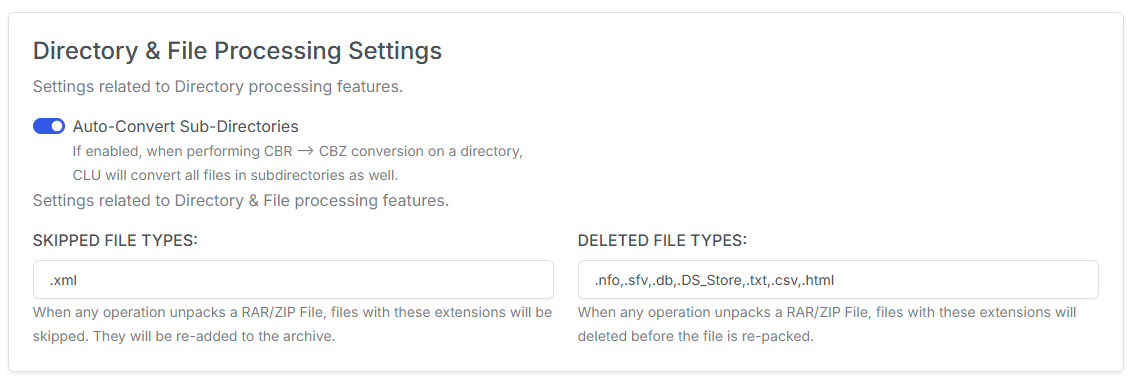
Enable Subdirectories for Conversion: This specifically allows Convert Directory to traverse subdirectories and convert all CBR/RAR files to CBZ. This is not enabled by default - as running this on a high level folder AND a large collection could take quite a bit of time.
SKIPPED TYPES: Add a comma-separated list of extensions to skip while performing actions on files. When any operation unpacks a RAR/ZIP File, files with these extensions will be skipped. They will be re-added to the archive. Examples are .xml
DELETED TYPES: Add a comma-separated list of extensions to delete while performing actions on files. When any operation unpacks a RAR/ZIP File, files with these extensions will deleted before the file is re-packed. Examples are: .nfo,.sfv,.db,.DS_Store
Custom Naming Settings
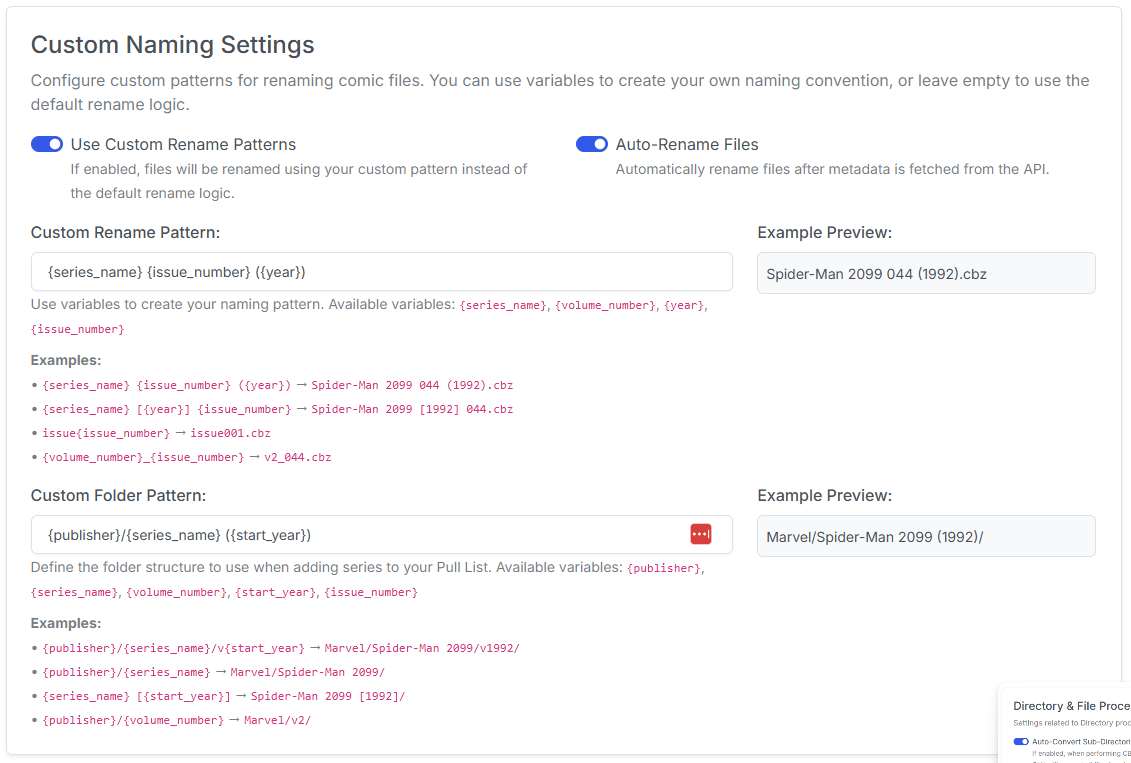
Use the options below to customize the naming scheme for file and directory operations.
Custom File Naming
Use a custom naming scheme for renaming issues when downloads are processed or files/directories are renamed in the UI
Enter your naming pattern using the syntax provided and see a real-time preview of the result.
Custom Folder Patterns
Similar to the custom file naming above, this allows you to customize the naming scheme for folders.
Currently, this is only used with the Pull List feature to create folders for each series. This allows you to organize your files in a way that makes sense to you.
Available Variables
- {publisher}
- {series_name}
- {volume_number}
- {start_year}
- {issue_number}