Libraries
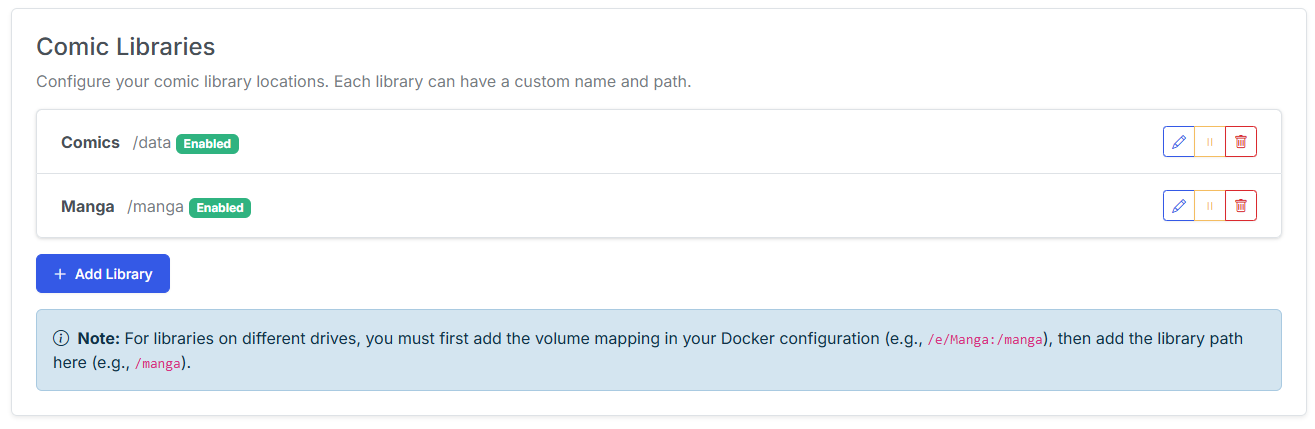
Libraries are the root of your collection.
You can add, edit, pause and remove libraries from this page.
Add Library
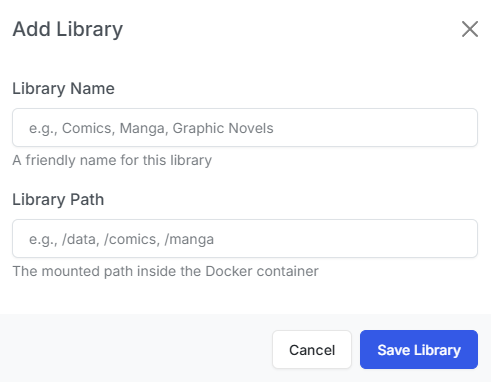
Click the Add Library button to add a new library. You will be prompted to enter the library name and the path to the library. The path will be the mapping to the drive you specified during installation.
Edit Library
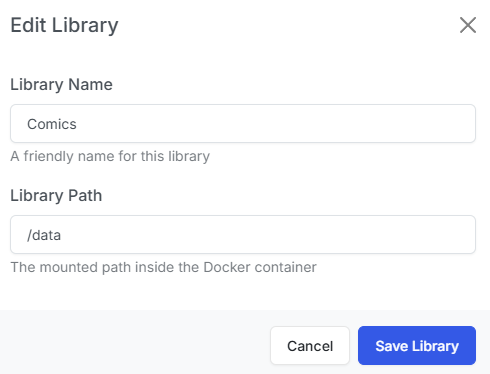
Click the Edit icon to edit a library. You will be prompted to enter the library name and the path to the library. The path will be the mapping to the drive you specified during installation.
Pause Library
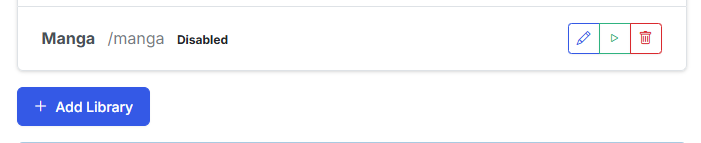
Click the Pause icon to pause a library. This will prevent the library from being scanned and showing on the collection page.
Click the Resume icon to resume a library. This will allow the library to be scanned and show on the collection page.
Remove Library
Click the Remove icon to remove a library.
You will be prompted to confirm the removal of the library. This will remove the library from the app. Files are not deleted from the filesystem.