Series
The Series page will load the details of the selected series from the Metron API. From this page you can perform multiple actions depending on your subscription status.
Subscribe to Series
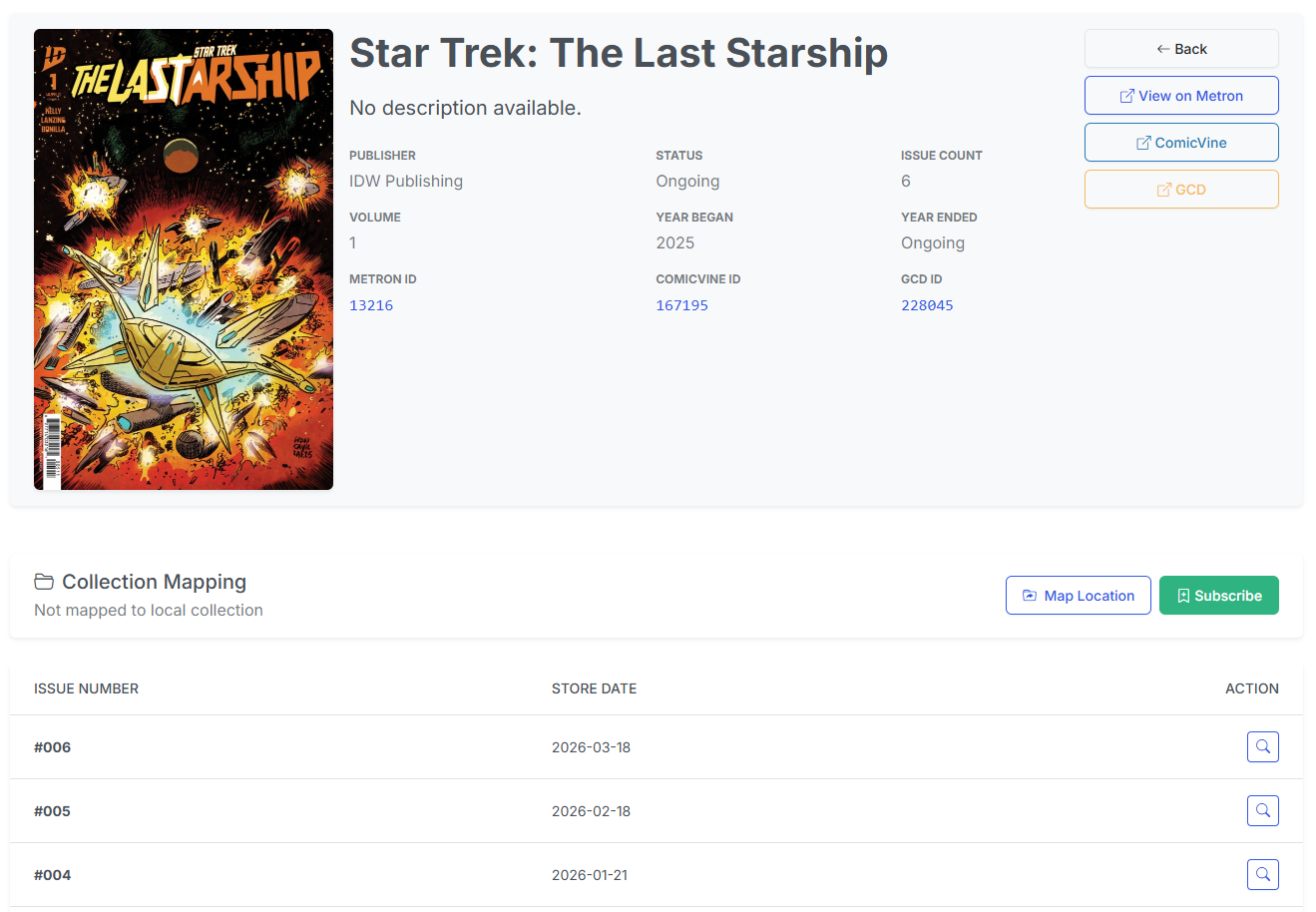
If you are not currently subscribed to the series, you will see two possible actions:
Subscribe
Clicking the Subscribe will prompt you for the location to save the series.
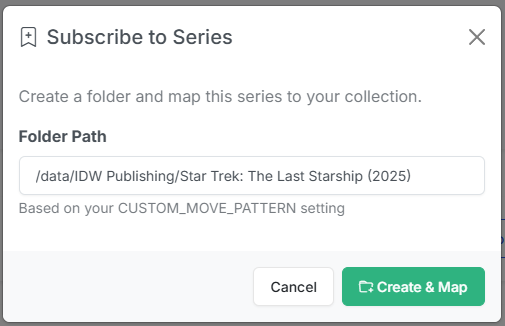
The default path will be based on your CUSTOM MOVE PATTERN setting in the configuration. You can easily modify this if you want a different location for the series.
Note
For example, I prefer
/{Publisher}/{Series} ({Year})
for my series naming but if there are multiple volumes, I'll use
/{Publisher}/{Series}/v{Year}
Once you have selected the location, click the Create & Map button to create the folder and save the subscription. CLU will automatically map issues to the series
Map Location
Clicking the Map Location button will open a modal, allowing you to map the series to an existing folder. This is useful if you already have issues of that series.
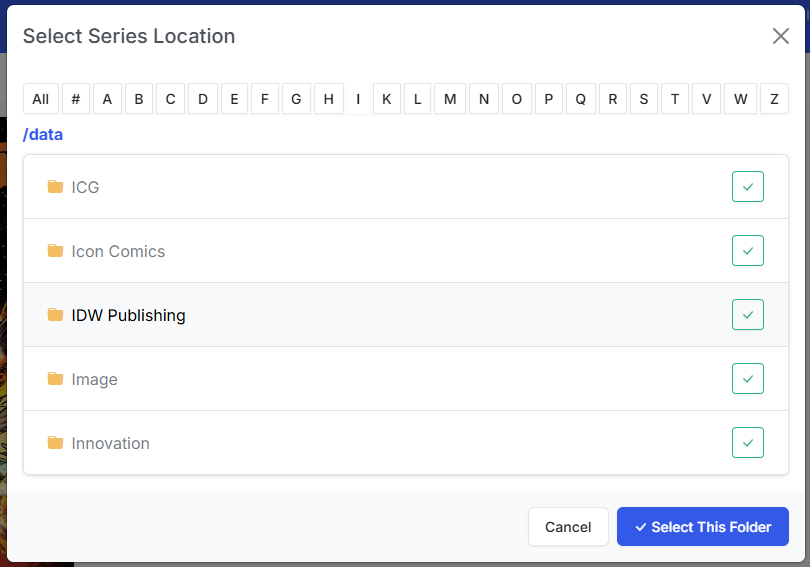
Simply navigate to the folder and click the or the "Select This Folder" button to map the series to the folder. CLU will then refresh and determine how many issues of the series you have.
Once you are subscribed to the series, you will see a different view:
Existing Subscription
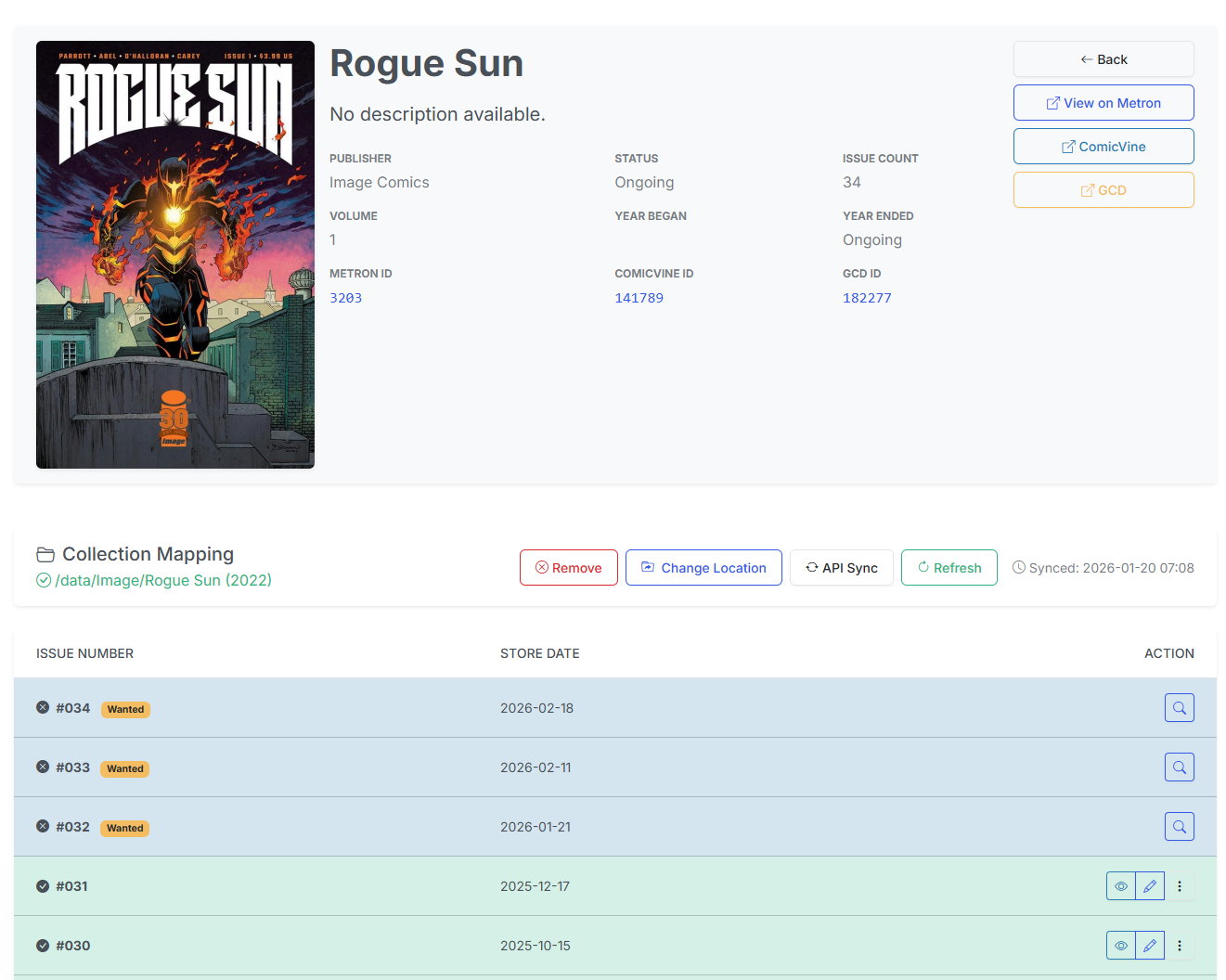
For existing subscriptions, you will see the following options:
Remove
Remove will remove the subscription. No files will be deleted.
Change Location
Change Location will open the same modal as Map Location, allowing you to change the location of the series. Once you confirm the new location, CLU will refresh and determine how many issues of the series you have.
API Sync
API Sync will call the Metron API to get the latest issues and details for the series. This process is run nightly for all series.
Refresh
Refresh will scan the mapped directory to check for existing/missing issues.
On the Stack
If this is enabled and you have On the Stack configured to show on your Library page, this will show the next issue you haven't read in that section.
Wanted / Skipped / Owned
By default, any issues not in the series folder will be marked as "Wanted" and will be searched for in the nightly pull process.
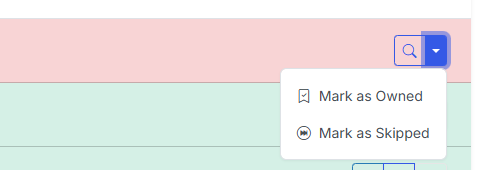
You can mark issues as "Owned" if you have a copy in a trade or another location. This will prevent CLU from searching for the issue in the nightly pull process.
You can mark issues as "Skipped" if you don't want to search for the issue in the nightly pull process.
Multi-Select Actions
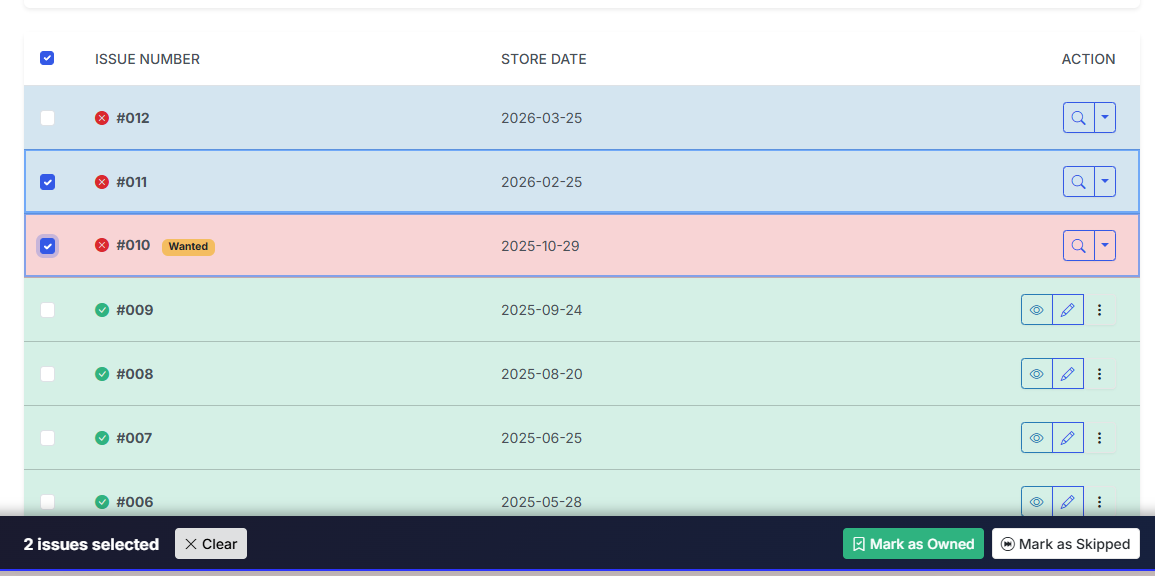
You can select multiple issues and perform the following actions:
- Mark as Owned - Mark multiple issues as owned
- Mark as Skipped - Mark multiple issues as skipped
- Mark as Wanted - Mark multiple issues as wanted (only if they are currently marked as Owned or Skipped)