Configuring the App
Once CLU is started, you can access the web interface at: http://<your-server>:<port>.
Using the default settings, this should be:
http://localhost:5577http://0.0.0.0:5577http://127.0.0.0:5577
Initial Run
Warning
The first time you run the app (new install or upgrading to v4), it will scan and save you folder and file structure to the database. Additionally it will generate thumbnails for all files in your collection. This can take some time depending on the size of your collection. If you have a large collection, you may want to wait for this to complete before using the app.
Features
The default page is the Collection page. This page will show you a list of all folders in your collection. Directory Features and Single File Features are available to manage your collection.
The File Management page is available to manage your files. It let's you manage your entire library remotely and Move, Rename and Delete directories and files all from one easy drag-and-drop interface.
Navigation

Navigation in the header will let you access additional features like Settings and File Downloads.
Active Operations
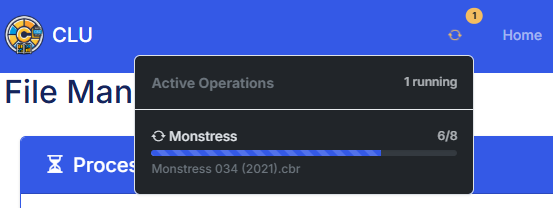
Any long running operation will have progress and current status displayed in the header. Currently supporter opertions are:
- Converting more than 10 CBR to CBZ
- Converting a 1GB+ CBR to CBZ
- Moving 10+ files to a new location
- Apply ComicInfo to a Folder of files