File Processing Settings
All settings related to file moving, renaming and processing are updated in this section.
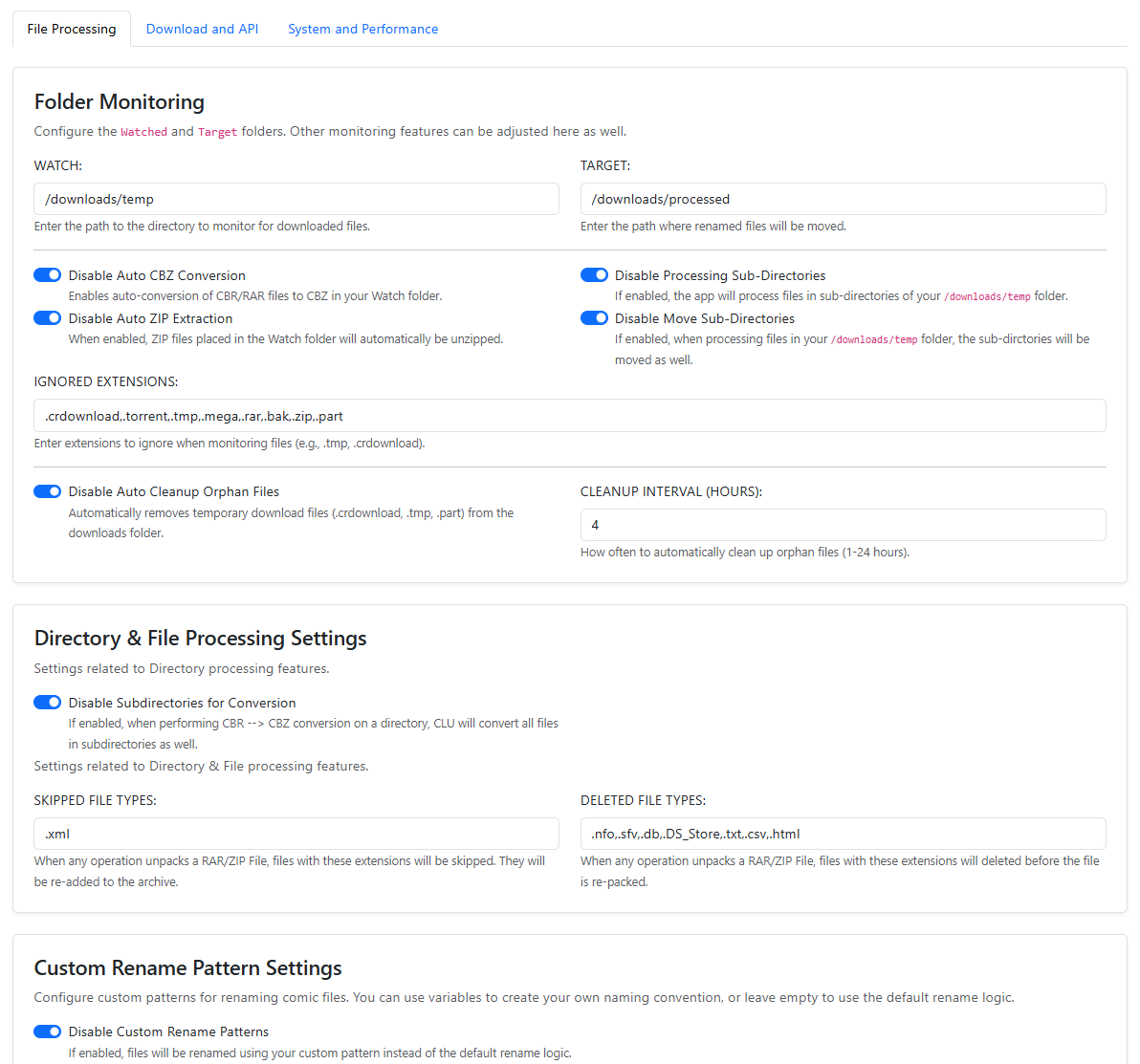
Folder Monitoring
This is the most extensive set of features and will only be applicable if folder-monitoring is enabled. Most of these feature flags enhance the previous feature flag.
WATCH: The folder that will be monitored for files being added. This setting is dependent on the optional location mapped during Quickstart.
TARGET: The folder where files will be after they are processed. This setting is dependent on the optional location mapped during Quickstart.
IGNORED EXTENSIONS: File types listed here will be ignored by the file monitoring process. Many of these file types are tempfile types and should be ignore. However, if you want to have others files in the WATCH folder and not have them processed with your enabled options - add those extenison types here.
Auto-Convert to CBZ: If enabled, when CBR files are downloaded, this will auto-convert them to CBZ
Auto-Unpack was removed in v6.4
Auto-Unpack ZIP Files no longer exists as a setting — archives dropped in WATCH are now always unpacked, and unpacked based on what's actually inside them.
The setting predated automated downloads and shipped off, so a fresh install silently stranded packs in WATCH with no indication why. With the behaviour unconditional there's nothing left to store, so the dead AUTO_UNPACK key is stripped from your config.ini on the next start rather than left looking like it still does something.
If you had it off deliberately, this is a behaviour change: drop archives somewhere other than WATCH.
How archives in WATCH are handled
CLU peeks inside an archive without extracting it to decide what it is, then acts accordingly:
| What's inside | What CLU does |
|---|---|
Ready comics (.cbz / .cbr / .pdf / .cbt) |
Extracts them beside the archive and deletes the archive. |
| Page images | The archive is the comic. A .zip is renamed to .cbz — never repacked — and a .rar goes through the normal CBR→CBZ conversion. |
| Unreadable, or neither | Blind extract, so nothing is left stranded in WATCH. |
Two long-standing problems were fixed by the same change:
- A loose
.rarwas never unpacked at all. It sits on IGNORED EXTENSIONS and, unlike.zip, had no exemption. Archives now bypass the ignore list entirely — they're on that list because they aren't comics to move, not because they shouldn't be opened. - Unpacking was content-blind. A
.zipthat was really a comic exploded into loose page images, which the pipeline then moved to TARGET one page at a time.
Multipart and hybrid release folders are unchanged — auto-unwrap still gets first refusal.
Process Sub-Directories: If enabled, this will perform monitoring functions on sub-directories within your WATCH folder. For example, if you have /WATCH/archive01.zip and it is auto-extracted to /WATCH/archiveeach file will be processed and moved to /TARGET.
Autu-Move Sub-Directories: If enabled, this will preserve any sub-directories in your /WATCH folder when they are moved to your TARGET folder. For example, if you have /WATCH/archive01.zip and it is auto-extracted to /WATCH/archiveeach file will be processed and moved to /TARGET/archive.

Consolidate Single-File Directories: If enabled, this will attempt to consolidate line-named single-file directories into a single folder when they are moved from WATCH to TARGET. This is handy for processing manually downloaded files from newsgroups. For example:
/PEP Comics 140/PEP Comics 140.cbz
/PEP Comics 141/PEP Comics 142.cbz
/PEP Comics 142/PEP Comics 142.cbz
/PEP Comics/
Auto Rename on Move: When enabled, files will be renamed using the default name cleansing patterns and your Custom Name Pattern (if enabled) when files are moved from your WATCH to TARGET folder. This setting is enabeld by default.
Auto Cleanup Orphan Files: If you are using the monitoring and Chrome Extension for downloads, failed downloads will be removed at regular intervals.
Cleanup Interval (hours): Set the timing for removing orphaned files.
Trash Can

When enabled, deleted files are moved to a trash folder instead of being permanently removed, so you can recover them.
Enable Trash Can: Move deleted files to trash instead of permanently deleting them.
Trash Folder Path: Where trashed files are stored. Leave empty to use the default (/cache/trash).
Max Trash Size (MB): When the trash exceeds this size, the oldest items are automatically evicted (range 100–100000 MB).
New in v6.0
The Trash Can is new in v6.0.
Missing Issue Configuration moved
The IGNORED TERMS and IGNORED FILES settings for the Missing Issue Check now live on the System and Performance tab.
Directory & File Processing Settings
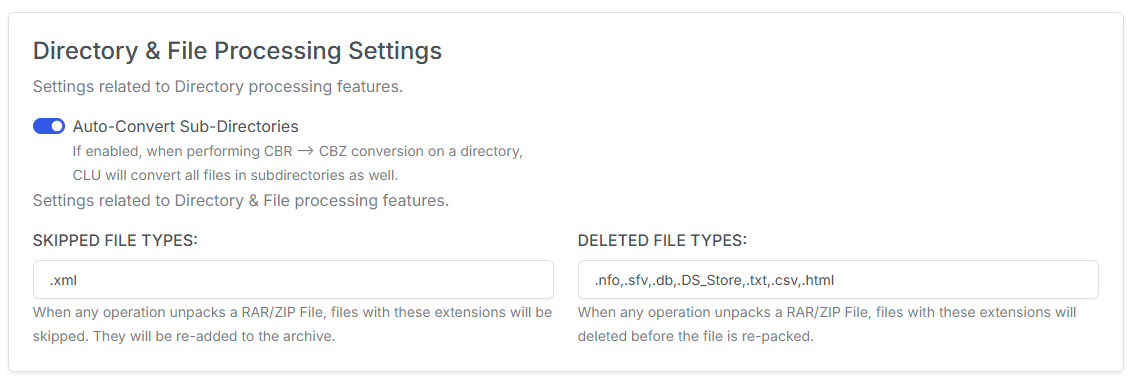
Enable Subdirectories for Conversion: This specifically allows Convert Directory to traverse subdirectories and convert all CBR/RAR files to CBZ. This is not enabled by default - as running this on a high level folder AND a large collection could take quite a bit of time.
SKIPPED TYPES: Add a comma-separated list of extensions to skip while performing actions on files. When any operation unpacks a RAR/ZIP File, files with these extensions will be skipped. They will be re-added to the archive. Examples are .xml
DELETED TYPES: Add a comma-separated list of extensions to delete while performing actions on files. When any operation unpacks a RAR/ZIP File, files with these extensions will deleted before the file is re-packed. Examples are: .nfo,.sfv,.db,.DS_Store
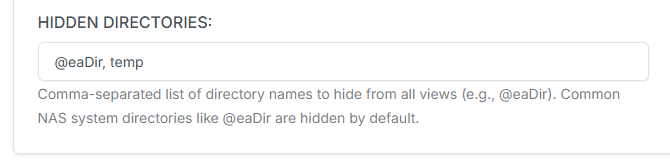
HIDDEN DIRECTORIES: You can enter a comma-separated list of directory names to hide from all views (File Manager, Collection and Source Wall). Default configuration is: @eaDir
Auto-Generate Folder Thumbnails
New in v6.3
AUTO-GENERATE FOLDER THUMBNAILS controls whether CLU creates folder cover art on its own while you browse.
When enabled (the default), any folder the collection grid can't draw art for is handed to a background queue that generates it from the first comic in the folder. The art appears within a few seconds, and existing folder art is never replaced.
When you'd turn it off: very large libraries on slow storage. Generation has to open comic archives to pull a cover, so on a network share, a spinning disk, or a FUSE/mergerfs mount, browsing a folder full of unarted series adds real I/O.
Turning it off doesn't remove any art you already have, and the manual Generate Thumbnail action keeps working either way.
Custom Naming Settings
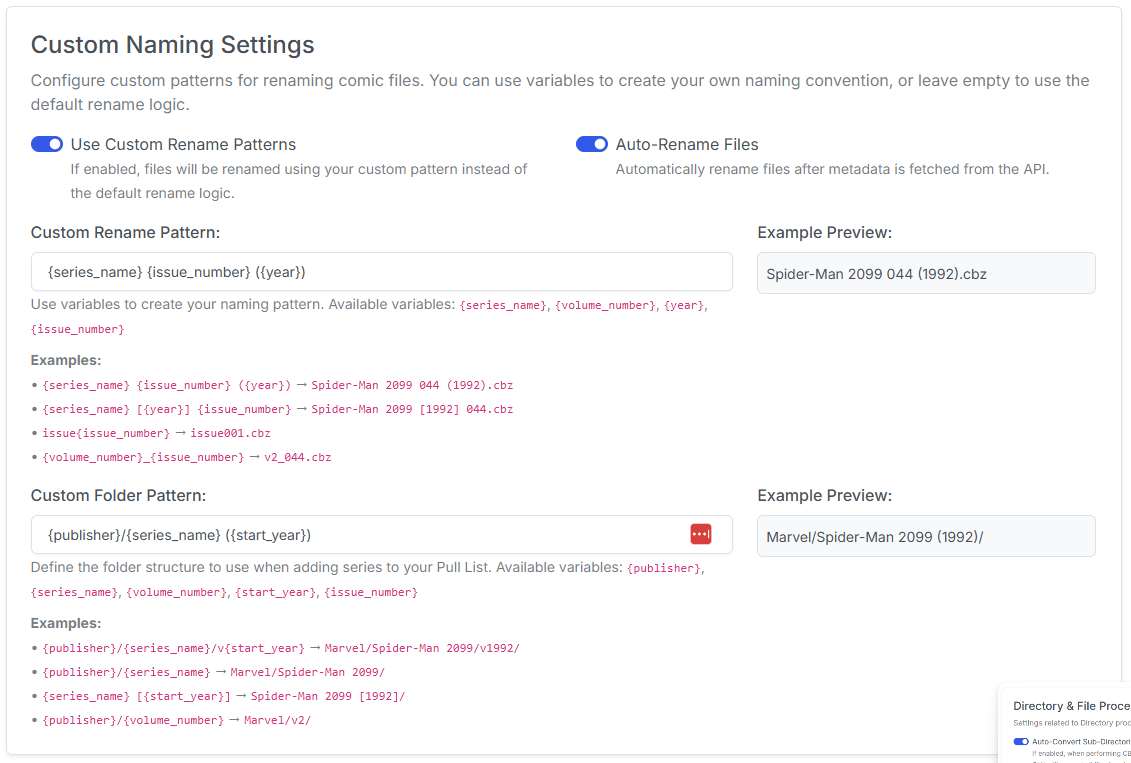
Use the options below to customize the naming scheme for file and directory operations.
Custom File Naming
Use a custom naming scheme for renaming issues when downloads are processed or files/directories are renamed in the UI
Enter your naming pattern using the syntax provided and see a real-time preview of the result.
Issue Number Leading Zeros

The Issue Number Leading Zeros dropdown controls how issue numbers are padded when files are renamed.
| Setting | Example (issue 44) | Example (issue 3) |
|---|---|---|
| None | 44 |
3 |
| 3 (default) | 044 |
003 |
| 4 | 0044 |
0003 |
The default is 3.
New in v6.0
This setting is new in v6.0. Decimal and alpha suffixes are preserved at every width — for example 44.MU becomes 044.MU at width 3, or 0044.MU at width 4.
Custom Folder Patterns
Similar to the custom file naming above, this allows you to customize the naming scheme for folders.
Currently, this is only used with the Pull List feature to create folders for each series. This allows you to organize your files in a way that makes sense to you.
Available Variables
- {publisher}
- {series_name}
- {volume_number}
- {start_year}
- {issue_number}
Smart Rename
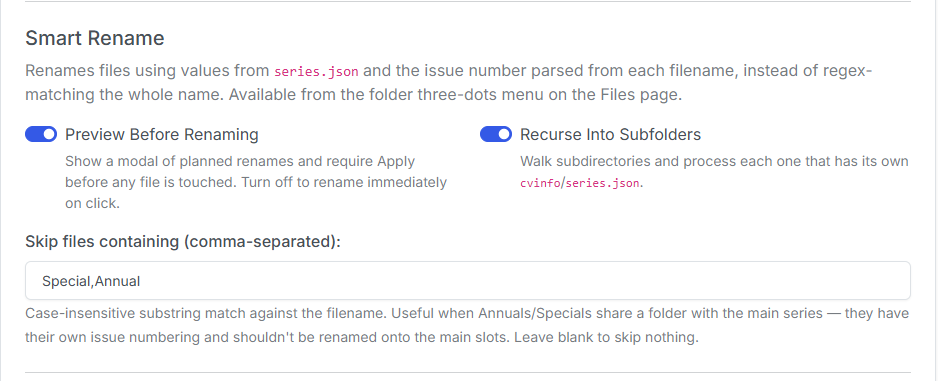
Smart Rename renames files using values from series.json and the issue number parsed from each filename, instead of regex-matching the whole name. It's run from the folder three-dots menu on the Files page.
Preview Before Renaming: Show a modal of planned renames and require Apply before any file is touched. Turn off to rename immediately on click.
Recurse Into Subfolders: Walk subdirectories and process each one that has its own cvinfo / series.json.
Skip files containing: A comma-separated, case-insensitive substring match against the filename (e.g. Annual,Special). Useful when Annuals/Specials share a folder with the main series — they have their own numbering and shouldn't be renamed onto the main slots. Leave blank to skip nothing.
Filename Character Cleanup
Applied after pattern substitution to every rename (custom and default logic). The file extension is always preserved.
Clean Spaces in Filenames: Remove spaces, or replace them with a character of your choice (e.g. Batman 001 → Batman_001).
Clean Special Characters: Remove or replace additional characters you list (treated literally, not as regex).
Always-removed characters
These filesystem-hostile characters are always removed, even when Clean Special Characters is off:
\ / : * ? " < > | & $ ;. Use the cleanup field only to remove additional characters. Replacement text cannot contain Windows-reserved characters: < > : " / \ | ? *.