Reading Lists
CLU supports importing reading lists from multiple sources, as well as creating your own and sharing them.
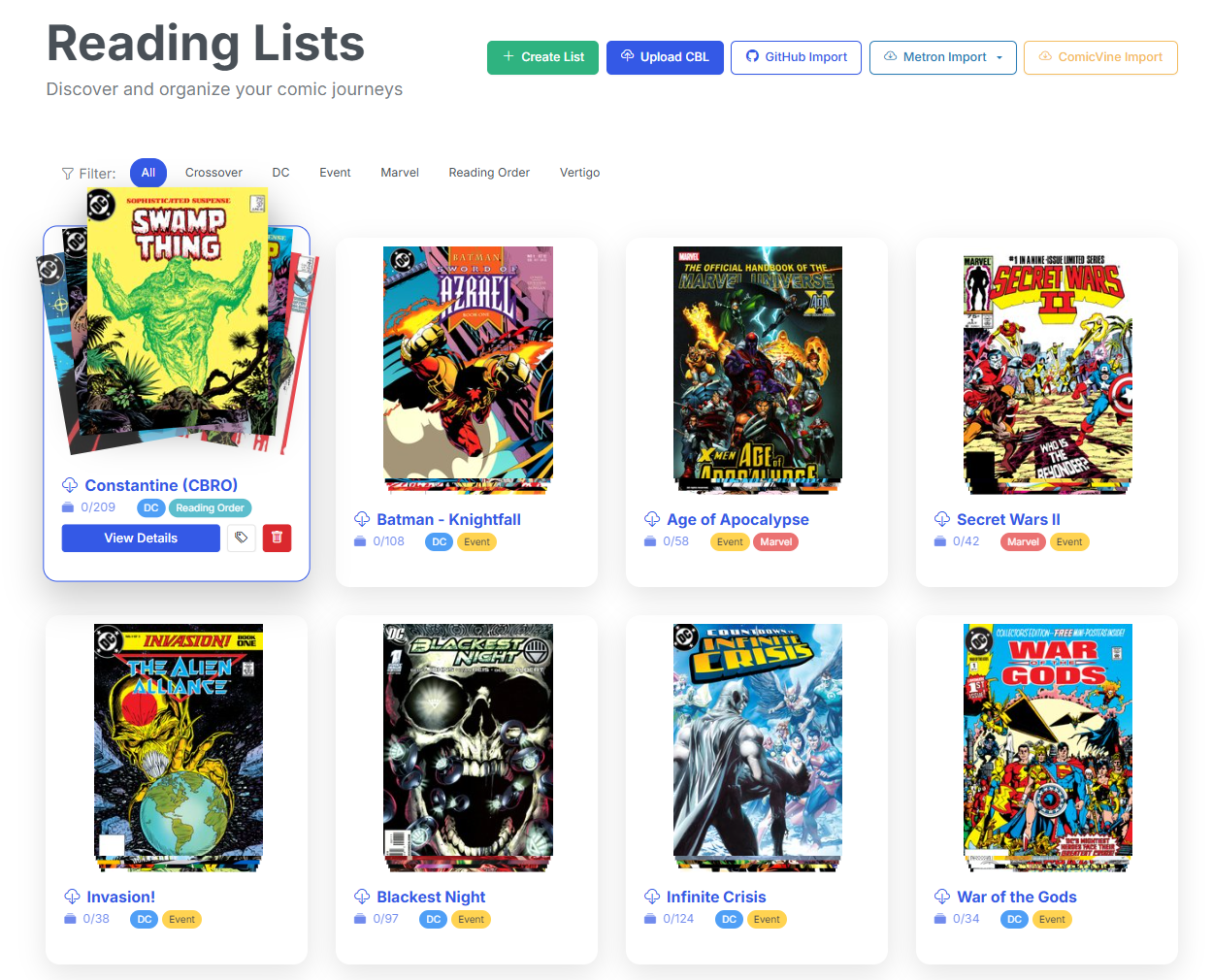
Reading Lists Page
Importing Reading Lists
You can import reading lists from the following sources:
- DieselTech GitHub Repository — Browse and import from a curated collection of CBL reading list files
- Import by URL — Paste a GitHub URL to a
.cblfile - Upload CBL File — Upload a local
.cbl(ComicBookLover) XML file directly - Metron Reading Lists — Import curated reading lists from the Metron database. Note: most of these are imported from the DieselTech GitHub Repository
- Metron Story Arcs — Import story arcs from Metron as reading lists. Note: these are user created, based on Publisher Story Arcs.
- ComicVine Story Arcs — Import story arcs from ComicVine as reading lists
GitHub Repository Browser
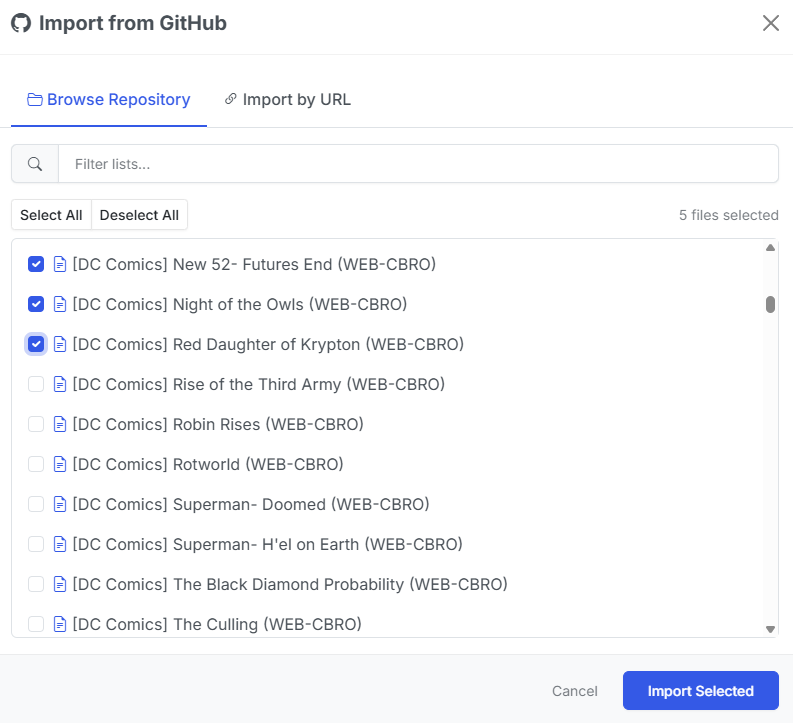
GitHub Import Modal
Click GitHub Import to open the import modal. The Browse Repository tab loads the full file tree from the DieselTech/CBL-ReadingLists repository (cached for 30 minutes).
- Use the filter input to narrow the file tree by keyword
- Select individual
.cblfiles using the checkboxes, or use Select All / Deselect All - The selected file count updates as you check items
- Click Import Selected to begin a batch import
Each selected file is downloaded and processed in the background. Up to 5 imports run concurrently — the rest are queued. Progress for each import is tracked and displayed.
Import by URL
Switch to the Import by URL tab to paste a direct link to a .cbl file on GitHub. CLU automatically converts GitHub blob URLs to raw content URLs for download.
Upload CBL File
Click Upload CBL to upload a .cbl or .xml file from your local machine. The file is parsed and imported in the background.
Metron Import
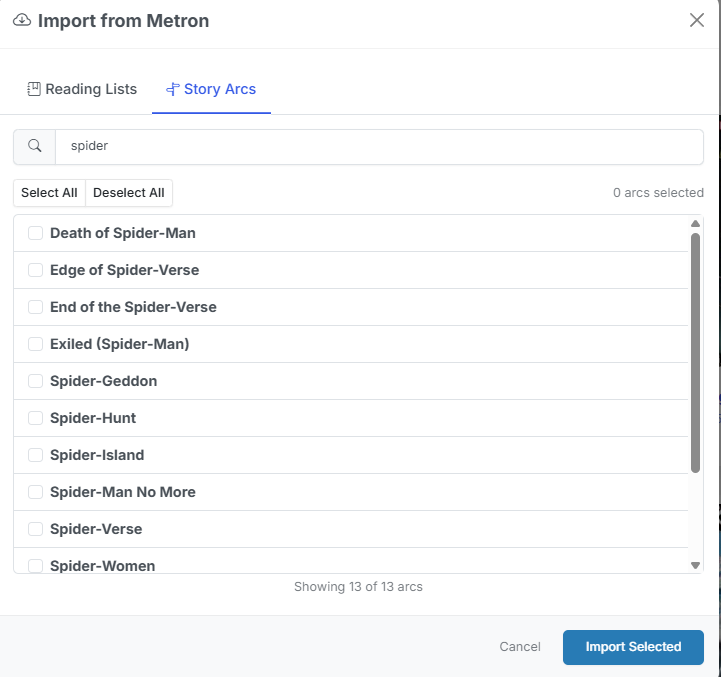
Metron Import Modal
Click Metron Import to open the Metron import modal. Two tabs are available:
- Reading Lists — Search and browse Metron's curated reading lists by name. Select one or more lists and click Import Selected. Each list's description, issue order, and metadata are preserved.
- Story Arcs — Browse Metron's story arcs with infinite scroll pagination. Select arcs and import them as reading lists. Arc issues are ordered by their arc sequence number.
Metron credentials must be configured in Settings > Metadata Providers before importing.
ComicVine Import
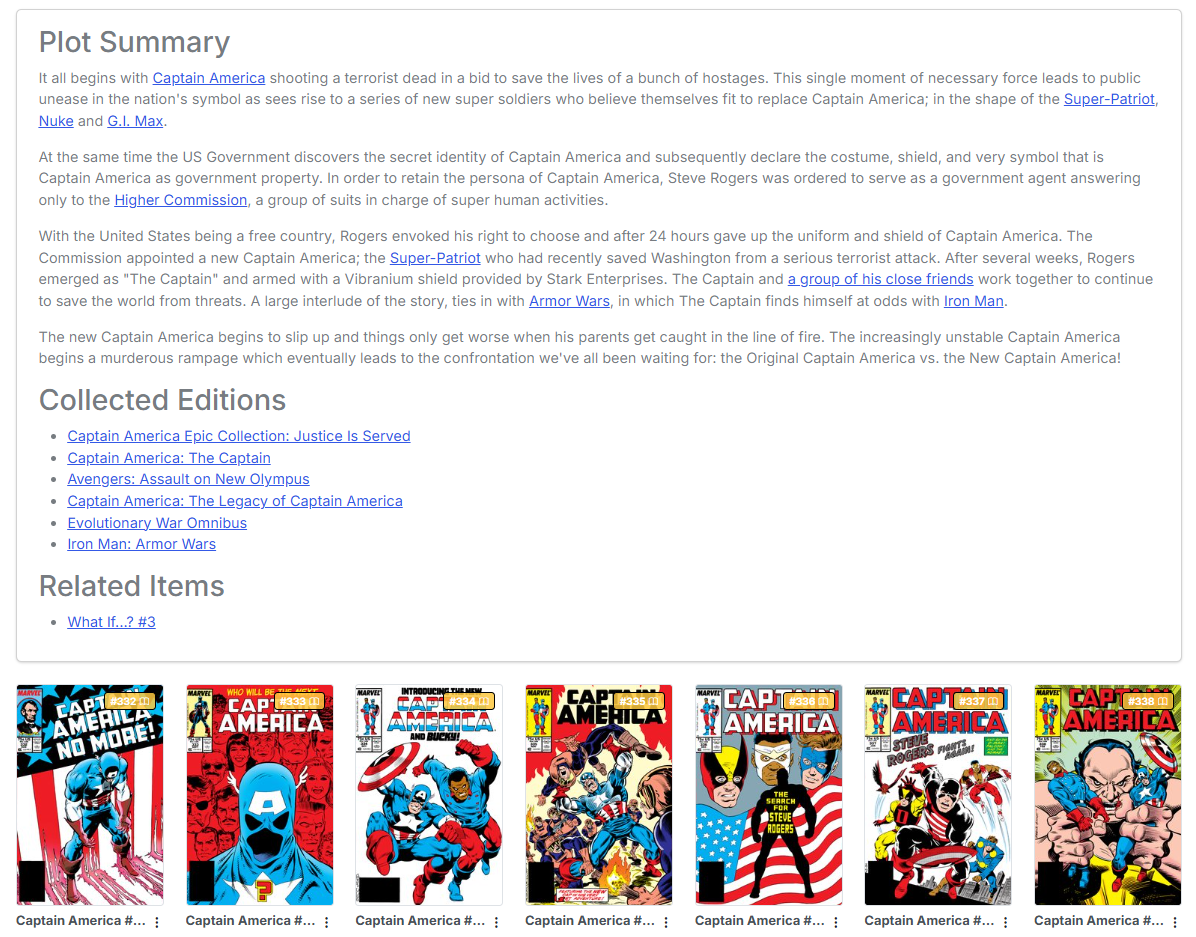
Reading Lists imported from ComicVine have additional details and can contain links
Click ComicVine Import to search and browse story arcs from ComicVine. Select one or more arcs and click Import Selected. A ComicVine API key must be configured in Settings > Metadata Providers.
Global Reading List Features
The following features are available for all reading list imports:
Browsing Reading Lists from Providers
When browsing Metron or ComicVine imports, the modal provides:
- Search input — Filter results by name as you type
- Select All / Deselect All — Bulk selection controls
- Selected count — Displays how many items are currently selected
- Infinite scroll — Story arcs load additional pages as you scroll (Metron arcs)
Filter and Search
On the main Reading Lists page, if any lists have tags assigned, a tag filter bar appears at the top. Click a tag to filter the grid to only lists with that tag, or click All to show everything.
Import Status
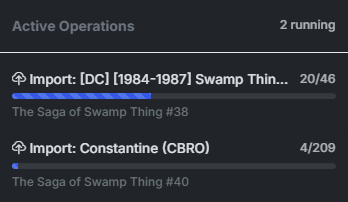
When importing reading lists, the import status is displayed in the header. The status includes:
- Importing — The reading list is being imported
- Count — The number of items imported / the number of items remaining
- Progress Bar — The progress of the import
- Current Issue — The current issue being imported
Keeping an imported list up to date
New in v6.5
An imported reading list is no longer a snapshot. CLU can now keep it matching its source, keep its entries pointing at the right files, and — if you ask it to — go and find the issues you're missing.
Sync existed before v6.5 but covered GitHub CBLs only. It now covers every import source.
Sync
The Sync button re-reads the list's original source and rebuilds the list to match it — issues added upstream appear, issues removed upstream go away, and the reading order follows.
| Source | What syncing it does | How CLU knows it changed |
|---|---|---|
| GitHub CBL URL | Re-reads the .cbl file at the URL you imported from. |
The file's contents. |
| Metron reading list | Re-reads the list from Metron. | The list's last-modified date. |
| Metron story arc | Re-reads which issues belong to the arc. | Which issues are in the arc. |
| ComicVine story arc | Re-reads which issues belong to the arc. | Which issues are in the arc. |
In every case CLU asks the cheap question first and only rebuilds the list when the answer has actually moved.
The Sync button has two outcomes
They look quite different, which is worth knowing before you assume one of them is a bug:
- Nothing changed — answered instantly, in the request itself. No progress bar, no background task, no task in Active Operations. The list was already correct.
- Something changed — the rebuild runs in the background and the page tells you so. A large ComicVine arc genuinely takes minutes.
The Sync button only appears on lists that have a syncable source
A list you built by hand, or imported from an uploaded CBL file, has nothing to sync against — there's no remote copy to compare with. Those lists show no Sync button.
Re-importing the same list makes a second list
This is still true, and it is exactly what Sync is for. Importing a list you already have gives you two lists, not an updated one.
Sync the list you have; don't re-import it.
Why an arc syncs differently from a reading list
Adding an issue to a story arc modifies the issue, not the arc — so an arc's own "last modified" date never moves, and asking for it would tell you nothing.
For arcs, CLU compares the arc's membership instead. That's a slightly more expensive question than a date, which is why arc syncs take a little longer than reading-list syncs.
Sync is not Re-match
The Re-match button sits next to Sync and shares its icon, so it's worth being explicit:
| Button | What it re-reads |
|---|---|
| Sync | The source. Pulls what GitHub / Metron / ComicVine now holds, and rebuilds the list's entries to match. |
| Re-match | Your library. Re-runs local file matching against the entries that are already in the list. Nothing about the list's contents changes. |
Use Sync when the upstream list has changed. Use Re-match when your files have changed and the list hasn't caught up.
Automatic syncing
The Reading List Sync Schedule runs the same thing on a schedule, across every list that has a syncable source.
Track Wanted
New in v6.5
A per-list Track Wanted button , beside Sync on the reading list page.
Turn it on and every entry in the list with no matched file becomes a wanted issue. Those entries:
- appear on the Wanted page, in their own From Reading Lists section, and
- are searched for by the nightly GetComics sweep like any other wanted issue.
Turn it off and they leave again. That's the whole feature — it's a switch on one list.
Off by default, and that's deliberate
Importing a 300-issue arc must not silently start 300 nightly searches on your behalf. Tracking is opt-in, per list, so nothing starts downloading until you've decided that's what you want for that specific list.
Who can turn it on
Unlike bookmarking — personal data any role may set — Track Wanted spends bandwidth and disk, so it's restricted to users who can manage the list. Readers see the button but can't use it. See Roles & Permissions.
Nothing is stored, so nothing goes stale
"Unmatched" is the definition of a tracked wanted issue — there's no separate list being maintained alongside the reading list. That has one useful consequence:
Mapping an issue by hand removes it from the Wanted page immediately, and clearing the mapping puts it back. There's nothing to rebuild, nothing to refresh, and no way for the two views to disagree.
Entries with a blank series name or issue number are excluded from tracking entirely — they can never match a file, so searching for them forever would be pointless.
Create a Reading List
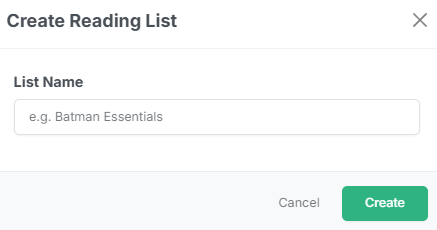
Click Create List on the Reading Lists page. Enter a name for the new list in the modal and click Create. The empty list is created immediately and you can begin adding issues to it.
Adding Issues to a Reading List
There are two ways to add issues to a reading list:
Add Via Search
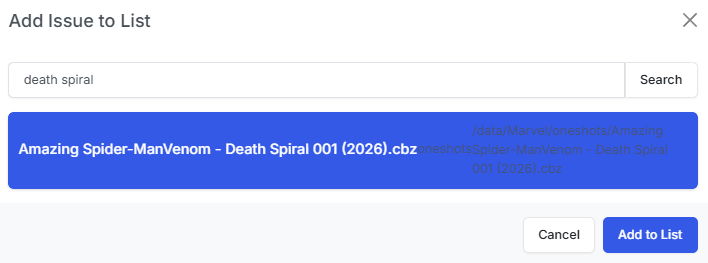
Open a reading list and click the Add Issue button. This opens a search modal where you can:
- Type a search query in the input field (searches your CLU file index)
- Browse the results — each result shows the file path
- Click a result to select it
- Click Add to List to add the issue
Add Via Browser
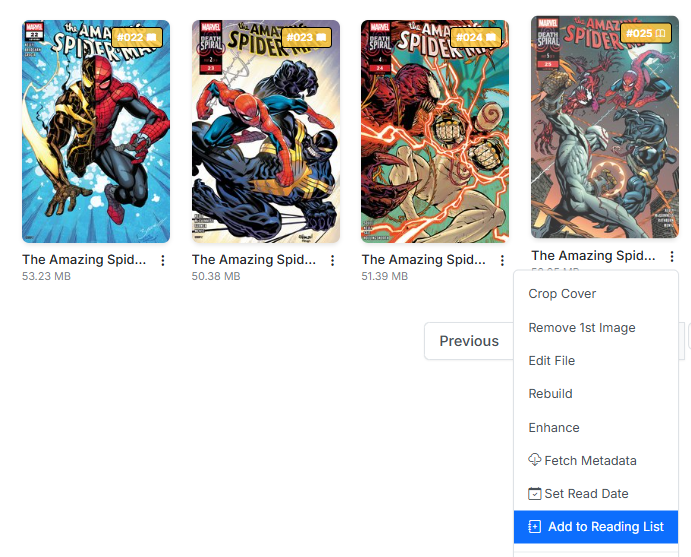
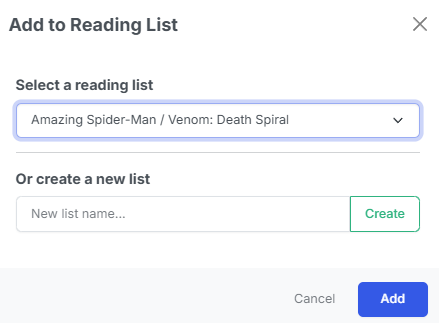
Anywhere you can view an issue, you can add it to a reading list by clicking the Add to List button in the issue's three-dot menu.
This will open a modal allowing you to select the reading list to add the issue to.
Adjusting the Reading Order of Issues
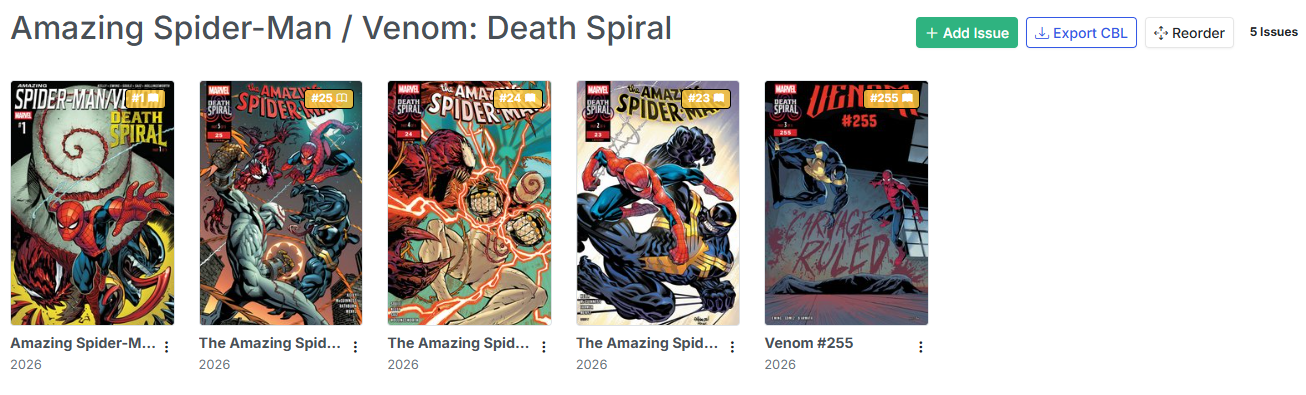
Click the Reorder button in the reading list detail view to enter reorder mode. In this mode:
- The grid switches to a drag-and-drop interface
- Drag issue cards to rearrange them in the desired reading order
- Click Save Order to persist the new order
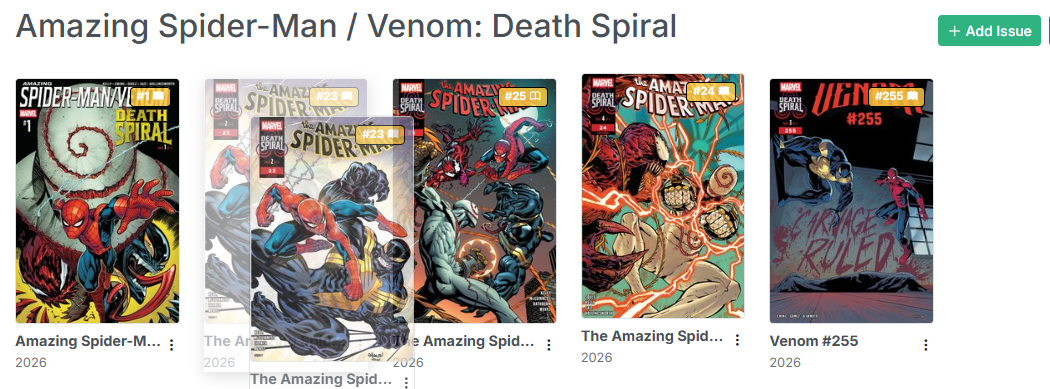
The new order is saved to the database and reflected everywhere the list is displayed.
Mapping Missing Issues
Issues can also be matched after import.
For imported lists where an issue was not automatically matched to a local file, click the issue's cover (which shows a "Click to map" placeholder) or use the three-dot menu and select Map Issue to search for and link a local file.
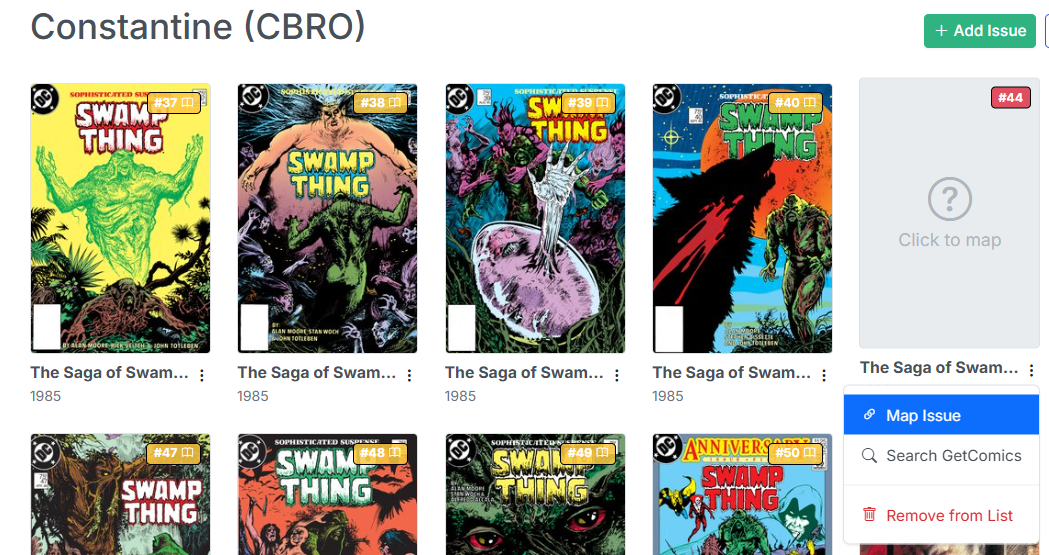
For example, this Constantine reading list is missing an issue of Swamp Thing before it was renamed.
Additionally, you can search for the missing issue and download it to your CLU Downloads folder. As of v6.5 you don't have to come back and map it by hand — see Gaps fill the moment the file arrives below.
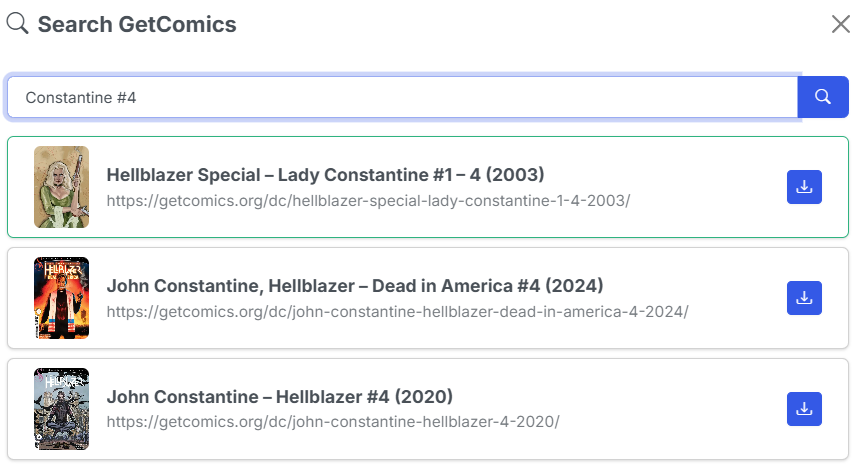
Here we are searching for a missing issue.
Lists keep themselves matched
New in v6.5
Three changes, one promise: a reading list keeps pointing at the right file.
Matches follow the file
Rename a comic, move it to another folder, or convert it from CBR to CBZ, and the list entry follows it. Previously any of those broke the mapping and left a "Click to map" placeholder behind on a file you still owned.
Delete the file and the entry goes back to unmatched — which, on a tracked list, is what puts it back on the Wanted page.
This matters most for mappings you made by hand. Re-match deliberately skips an entry you mapped yourself — your answer beats the matcher's, and that's the right default. But it used to mean a hand-picked mapping broken by a rename could never heal itself: the matcher wouldn't touch it, and you had to notice and redo it. Now the path follows the file, so it doesn't break in the first place.
Gaps fill the moment the file arrives
When a download lands in your library, CLU checks whether it closes a gap on any tracked list and maps it immediately. You don't have to wait for the nightly re-match or press Re-match yourself.
This only ever adds a match
An arriving file can never un-map something you'd already mapped. Clearing a match stays a decision for the nightly sweep and the explicit Re-match button — the arrival path is add-only.
The right volume
A list entry no longer maps to an issue of the same number from a different volume or year. Daredevil #1 (1964) and Daredevil #1 (1998) are no longer interchangeable to the matcher.
Managing Tags
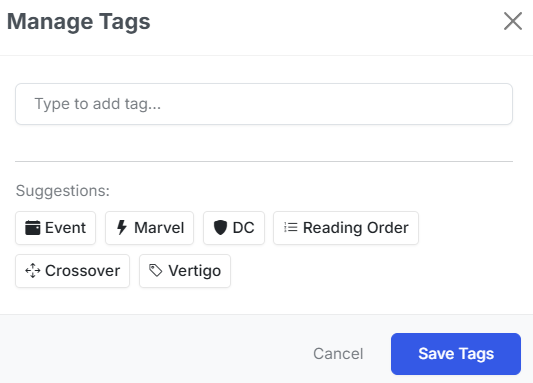
Use the Tags button on each reading list card to open the tag manager. You can:
- Type to add new tags with autocomplete suggestions from existing tags
- Click predefined tag suggestions
- Remove tags by clicking the X on each tag badge
- Tags are used for filtering on the main Reading Lists page
Reading Lists on the Dashboard
New in v6.3
A reading list can now surface on the Collection homepage. Before v6.3 a list only existed if you deliberately navigated to it.
Bookmarking a list
The Bookmark action on a reading list card is the single opt-in that drives both dashboard surfaces. Bookmark a list once and it appears in Want to Read and feeds On the Stack; un-bookmark it and it leaves both.
Per user
Bookmarks are user-scoped. In a multi-user install everyone curates their own dashboard from the same shared lists — your bookmarks don't change anyone else's homepage.
Readers can bookmark. It's their own personal data, so it isn't gated behind the Clerk role. See Per-User Data.
Want to Read
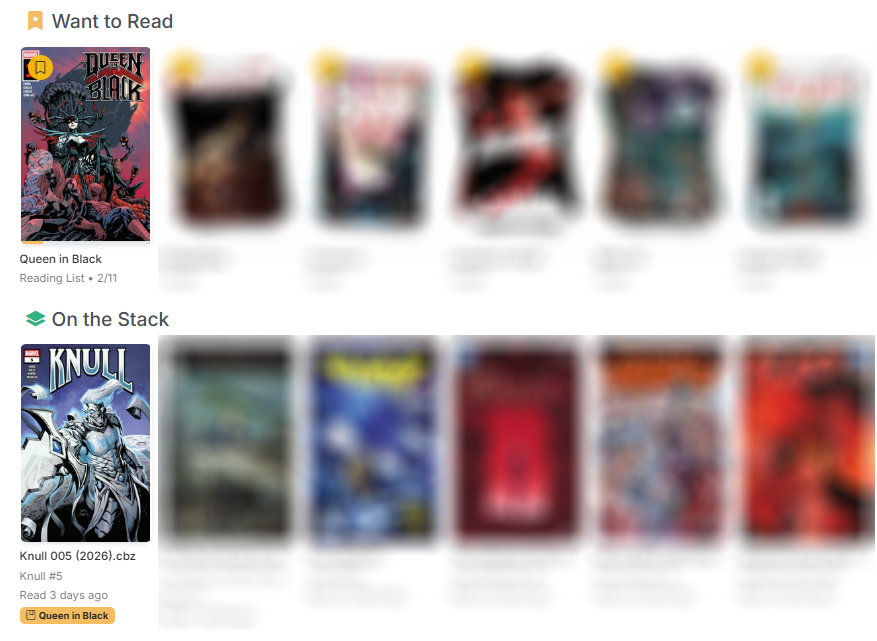
A bookmarked reading list as a single Want to Read card.
Each bookmarked list gets one card in the Want to Read swiper, showing:
- A cover stack built from the list's issues
- A read / total count
- A progress bar
- Click-through to the list itself
On the Stack
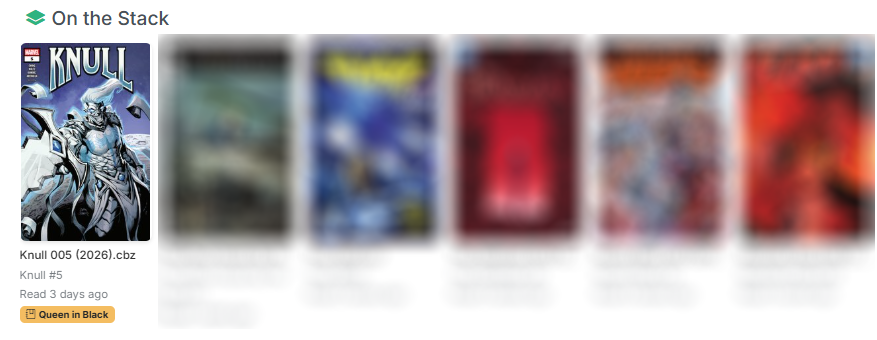
On the Stack surfaces each bookmarked list's next unread issue, defined precisely as:
the first entry in the list's own sort order that is unread and has a matched file.
Two consequences worth knowing:
- Entries with no matched file are skipped, not counted as unread. This is why a list can show a later issue than you'd expect — the unmatched ones in between are passed over rather than blocking. Map the missing issues if you want them in the sequence.
- A list you've never started still appears. It doesn't require prior progress; an untouched list contributes its first entry.
Entries carry a list-name badge so you can tell which list an issue came from.
On the Stack merges these with your subscribed series and dedupes: if a bookmarked list and a subscribed series point at the same next issue, it's shown once. The existing folder-scope filter applies to reading-list issues too.
Searching for Missing Issues
Updated in v6.3
The search modal on the Reading Lists page now includes Usenet and DC++ sections with full result scoring. It was GetComics-only before.
When you search for a missing issue from a reading list, you get the same combined, scored, multi-source results as the series page and Wanted Issues — ordered by Source Priority — plus the download and keep searching behavior described in Click to Download.
The modal also now passes the issue year into the query, which improves matching on long-running series.
Reading Lists and roles
Who can do what
In a multi-user install, Readers can browse reading lists and bookmark them for their own dashboard. Creating, importing, editing, deleting, mapping, reordering, syncing, and Track Wanted are Clerk actions.