Split File
New in v6.0
Split File is new in v6.0 and is CBZ-only.
Downloaded a "collected" CBZ that's really several issues bundled together — or a fan-made TPB you'd like to break into individual issues? The File Manager's per-file dropdown has a Split File action for CBZs that turns one archive into one clean CBZ per issue.
When to use it
Use Split File when a single CBZ actually contains multiple issues and you'd rather store them individually — so they match, sort, and read like the rest of your collection.
Walkthrough
- In the File Manager, open the per-file dropdown for the CBZ and choose Split File.
- CLU unpacks the archive and auto-detects issue boundaries from the page filenames (e.g.
Series 003 - 0001.jpg). - You're shown an editable, grouped page grid — one group per detected issue.
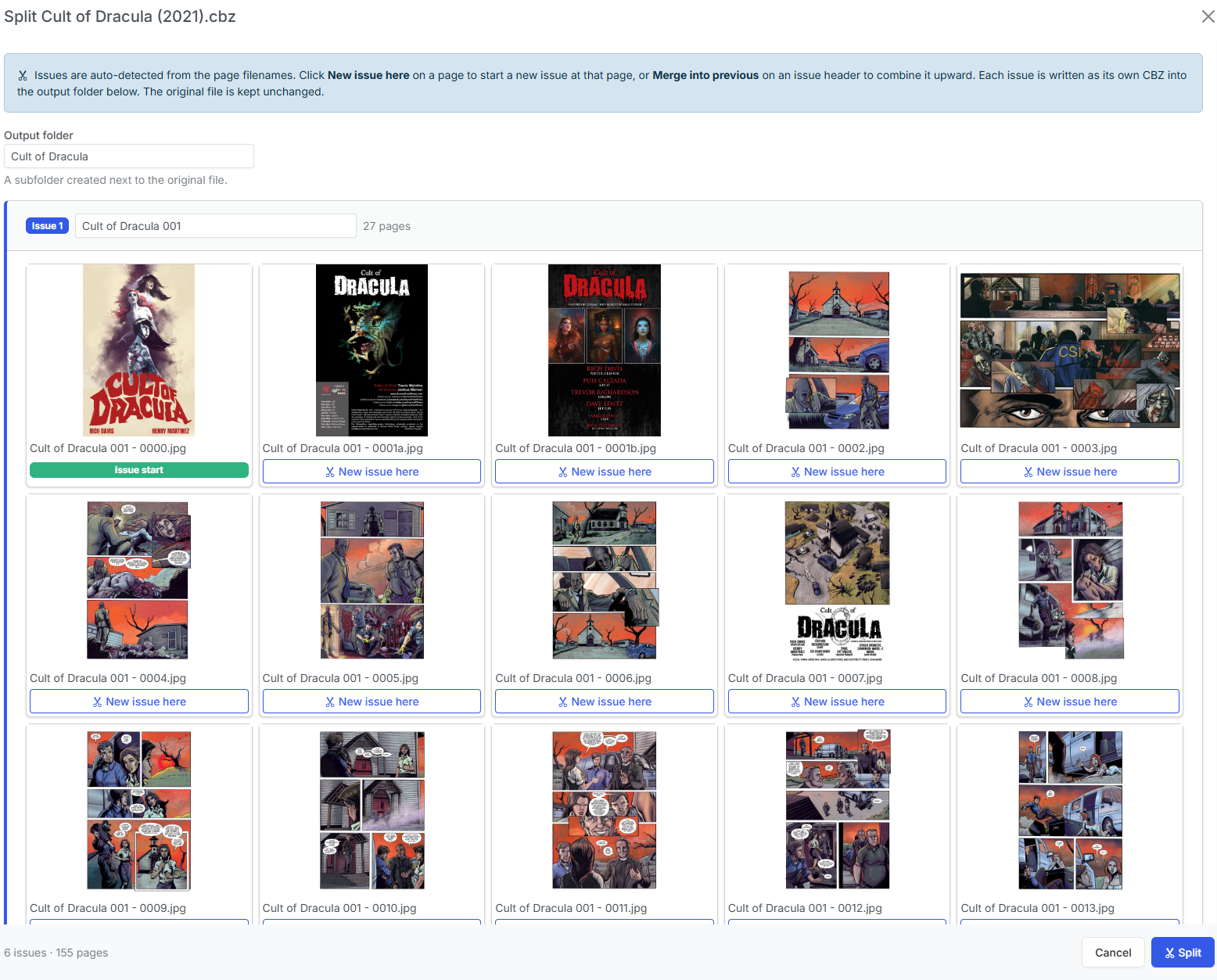
In the grid you can:
- Adjust boundaries — move where one issue ends and the next begins.
- Merge or add groups — combine mis-split issues or introduce a boundary the auto-detection missed.
-
Rename each issue before committing.
-
When the grouping looks right, commit. CLU writes one image-only CBZ per issue into a new series subfolder.
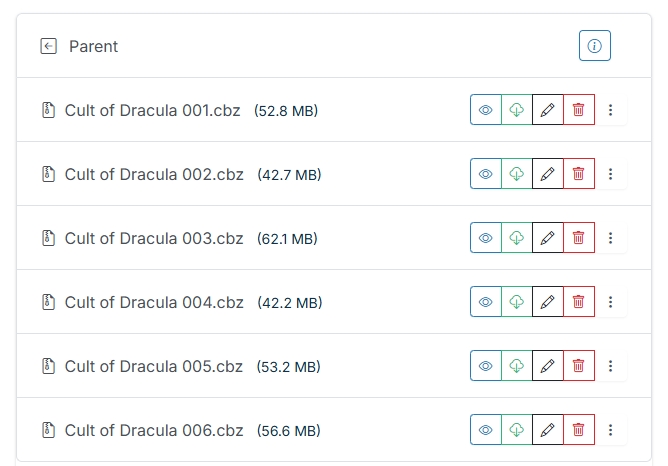
What CLU writes (and what it doesn't touch)
Your original file is left untouched
Split File never modifies the source archive. It writes new files into a new series subfolder — one clean, image-only CBZ per issue. Keep or delete the original at your discretion.