Automap (Scan Library)
New in v6.0
Library Import / Automap is new in v6.0. It's the fastest way to populate your Pull List if you're migrating from another app.
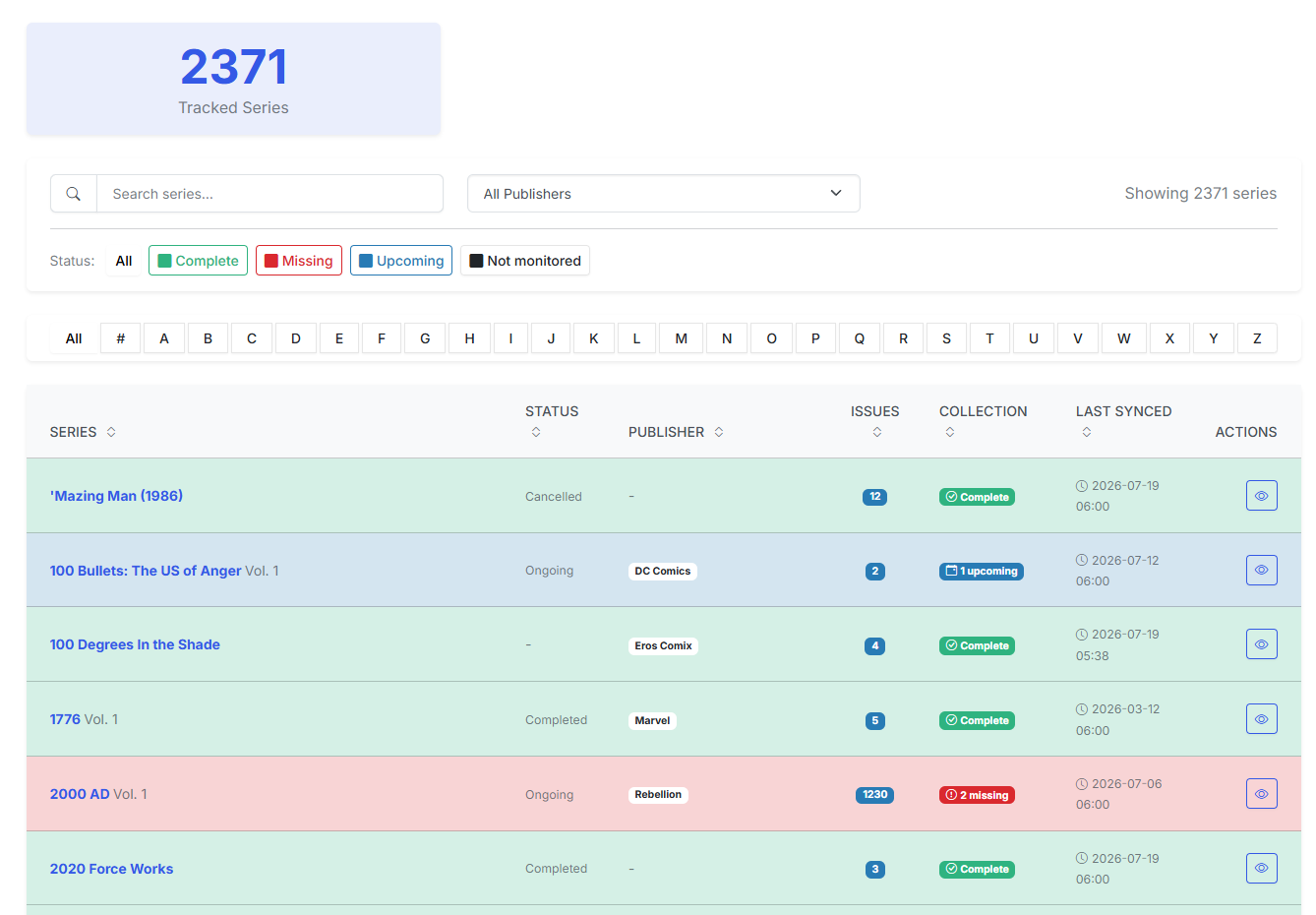
If you already have a large library, populating the Pull List one series at a time is a chore. Scan Library reads the sidecar files already in your library, resolves each to a Metron (or ComicVine) series, and builds your Pull List for you in a single pass.
What Automap does
- Scans your library roots for
series.jsonandcvinfosidecar files. - Resolves each sidecar to a Metron or ComicVine series.
- Classifies every result into auto-mapped, needs review, or skipped — with a reason shown for anything it couldn't place.
Classification
| Classification | Meaning | Your action |
|---|---|---|
| Auto | CLU resolved the sidecar to a single, confident series match. | None — it's mapped automatically. |
| Needs review | CLU found a likely match but wants you to confirm (e.g. multiple candidates or a fuzzy title). | Confirm or correct it in the review modal. |
| Skipped | CLU couldn't place it. | Read the reason; map the series manually later if needed. |
The review workflow
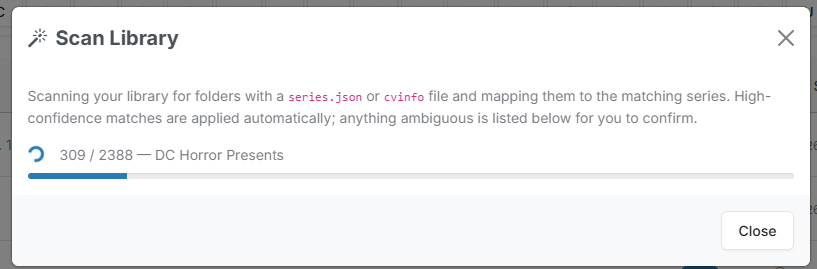
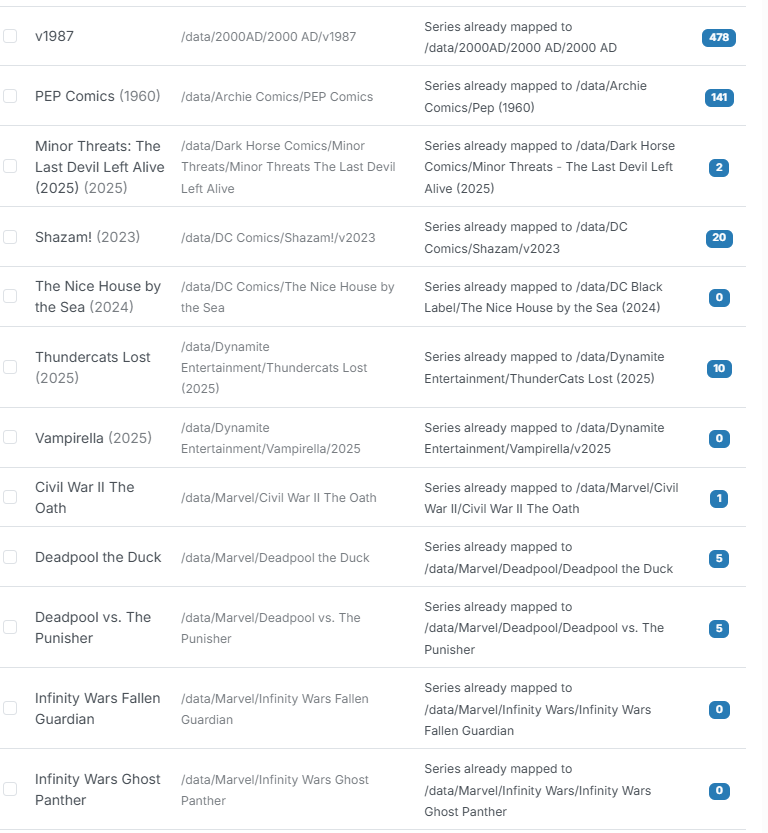
Items marked needs review are confirmed in a modal. For each one, pick the correct series (or accept CLU's suggestion) and apply.
When you apply the mappings, CLU:
- Backfills the sidecars so each mapped folder carries the resolved series info going forward.
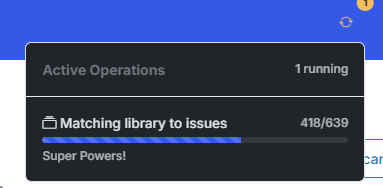
- Kicks off a background sync to pull issue lists and details from the provider.
- Runs a collection match to determine which issues you already own.
Notes & behavior
- ComicVine-only series are supported — a series that only resolves on ComicVine will still map.
- Existing sidecar
publisherandstatusvalues are preserved rather than overwritten. - The Mylar
<publisher>/<series>/v<year>/layout is handled correctly — thev<year>volume folder is no longer mistaken for the series name. - On import, the Monitor flag is set intelligently: fully-owned series with an ended status (Cancelled/Completed) default to Not Monitored. See Import Defaults.
Scanning a single folder
New in v6.3
Add to Pull List on a folder dropdown runs this same identity resolution against one folder.
It is genuinely the same code path, not a lighter version — sidecars are backfilled, issues synced, and owned/missing rebuilt in the background exactly as a full scan would. A folder added this way is indistinguishable from one Scan Library picked up.
One behavior differs in emphasis: a corrupt or unreadable sidecar returns needs match and opens a Metron picker, rather than failing. You can always map it by hand.
See Additional Features for the full outcome table.
Related
- Pull List — where imported series land.
- Additional Features — adding a single folder to the Pull List.
- Series page — mapping and subscription management for a single series.