Additional Features
Directory Filtering
For any directory that has more than more than 25 folders, you can now start typing to filter the list. This does not search within the directories, this just quickly narrows down your results.
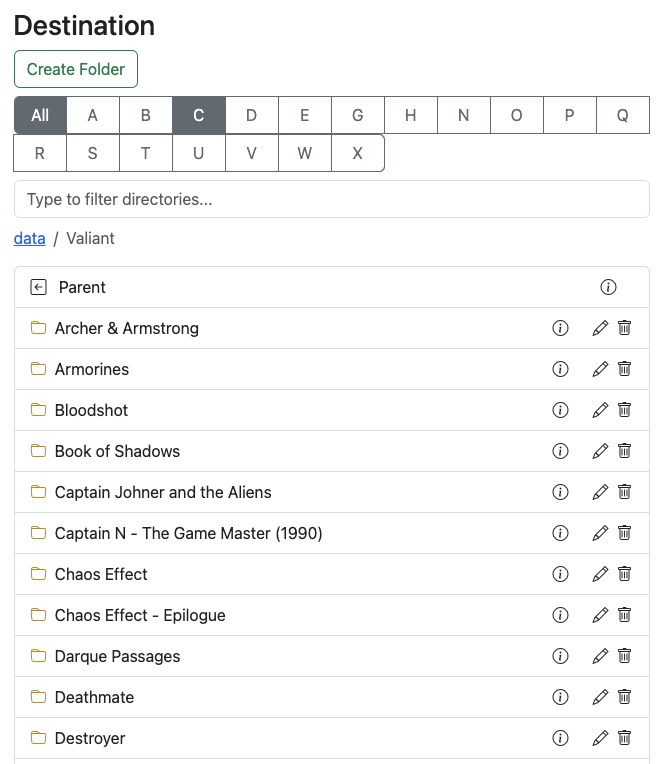 |
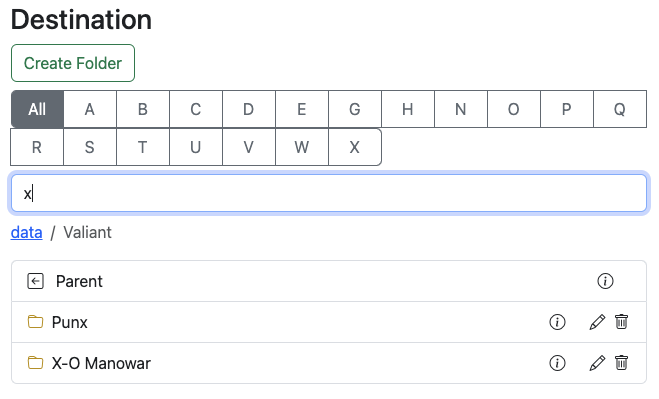 |
|---|---|
Search
Search your Comic folders to see if you have a particular issue or to see if you want to look for a better file.
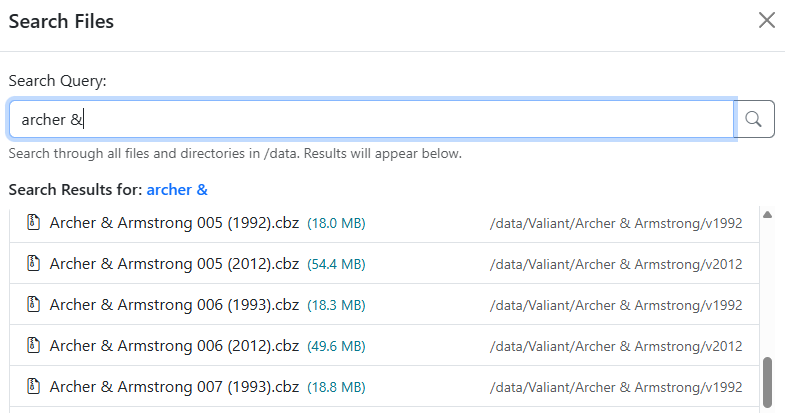
When you start the app, all files and folders will be indexed and saved to the database. Timing on this will be dependent on your library. During testing, a library with 110,000 files indexed in about 12-minutes.
When files and folders are moved, the app will add/update/delete them in the database.
See the File Index Management section on App Settings for more details and to manually re-index your library.
This searches you entire '/data' library, but ignores the 'TARGET' folder if you are using folder-monitoring
Upload Files
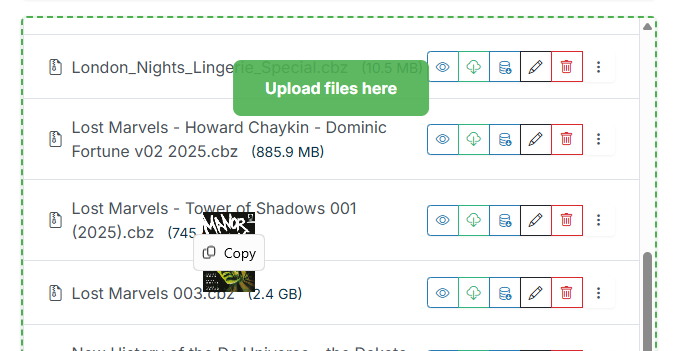
You can drag and drop a single file or multiple files to upload them to the currently visible Source or Destination directory
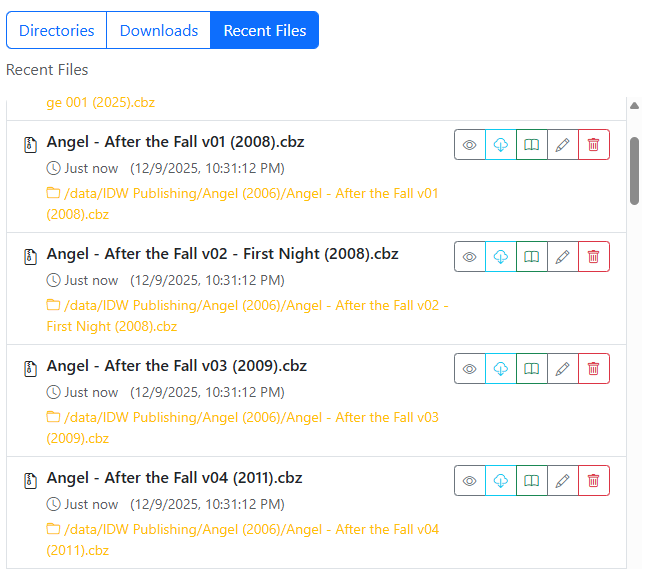
Recent Files
Clicking the "Recent Files" button will show the last 100 files that have been added (or moved) withing you collection. This is useful for seeing new downloads.
This provides results from your entire '/data' library, but ignores the 'TARGET' folder if you are using folder-monitoring
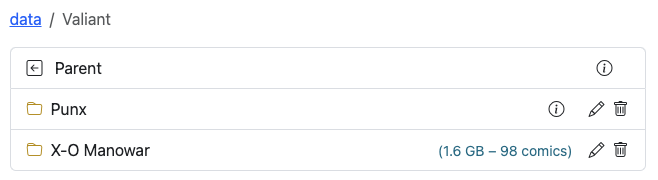
File & Folder Sizes
When viewing folders, you can click the info icon and CLU will scan the folder and return the size and file count. This is done on request, as providing that data in the list would increase load time significantly.
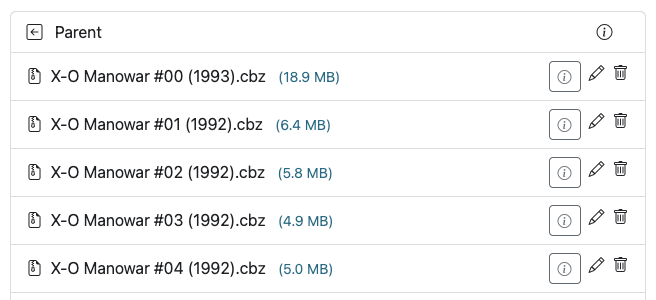
When browsing files, you'll also see file size next to each file. This allows you compare two files, allowing you to see if a newer file was larger / better quality than an existing file.
View Cover, Meta-Data and ComicInfo.xml
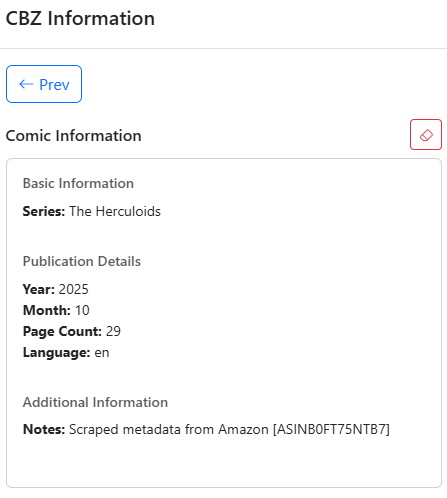
Additionally, you'll see a new info icon next to all comics as well. Clicking this will open a modal window and the cover, meta-data and ComicInfo.xml data (if available) will be displayed.
Using the <— Prev and Next --> buttons, you can quickly view details for multiple issues.
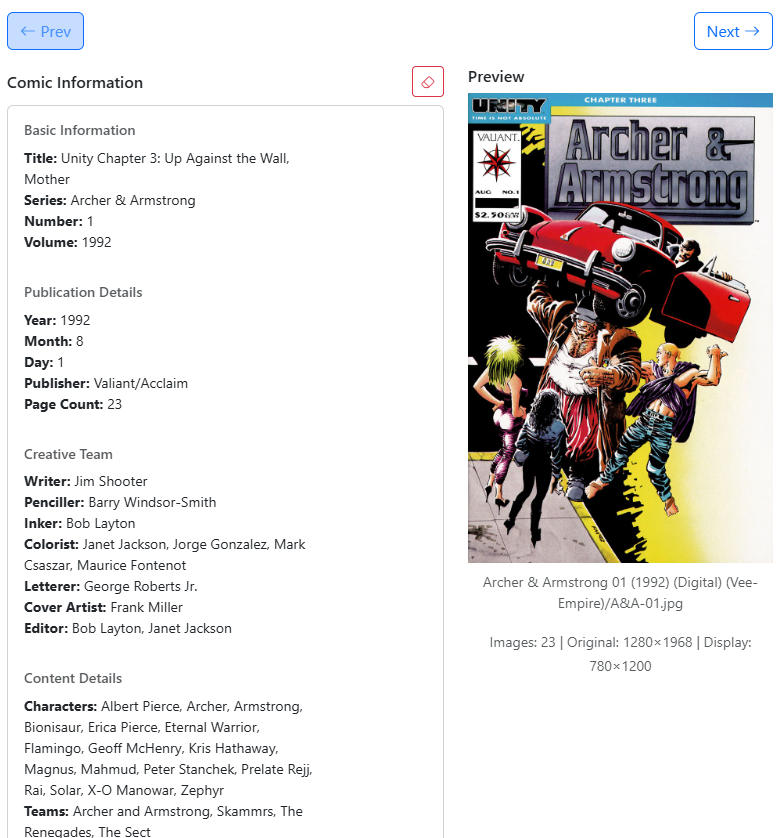
For any comic that has a valid 'ComicInfo.xml' file, you'll also see a icon that will let you clear the comic info for that file. This is useful if the metadata is incorrect or incomplete.
After clicking the icon, you'll be asked to confirm you want to delete the metadata. Clicking Yes, will unpack the file, delete the XML and re-pack the file.
Want to Read
New in v6.3
Want to Read is available on both files and folders from the dropdown menu, in the File Manager and the collection grid.
Flags the item for the Want to Read swiper on the Collection homepage. It's a personal flag — in a multi-user install it lands on your dashboard only.
Add to Pull List
New in v6.3
Add to Pull List is available on folders from the dropdown menu.
Runs the same identity resolution that Scan Library uses, but on a single folder. The result is indistinguishable from a full library scan: sidecars are backfilled, issues are synced, and owned/missing counts are rebuilt in the background.
Outcomes
The action reports what actually happened rather than silently doing something surprising:
| Outcome | Meaning | What to do next |
|---|---|---|
already_mapped |
The folder is already mapped to a series on your Pull List. | Nothing — this is a no-op. |
applied |
The series was identified and mapped. Issues are syncing in the background. | Nothing. Check the Pull List in a moment. |
needs_match |
No usable series.json or .cvinfo sidecar was found. |
A Metron picker opens — search for and pick the right series. |
conflict |
The series is already mapped to a different folder. | CLU reports where rather than re-pointing the mapping. Decide which folder is correct and fix the mapping on the Series page. |
failed |
The operation could not complete. | Check App Logs. |
Constraints
- The folder must sit inside a configured library root. This is what keeps your
/downloadsfolder off the Pull List. - Root-level folders are excluded in the collection grid, because at that level a folder is a publisher, not a series.