Series
The Series page will load the details of the selected series from the Metron API. From this page you can perform multiple actions depending on your subscription status.
Subscribe to Series
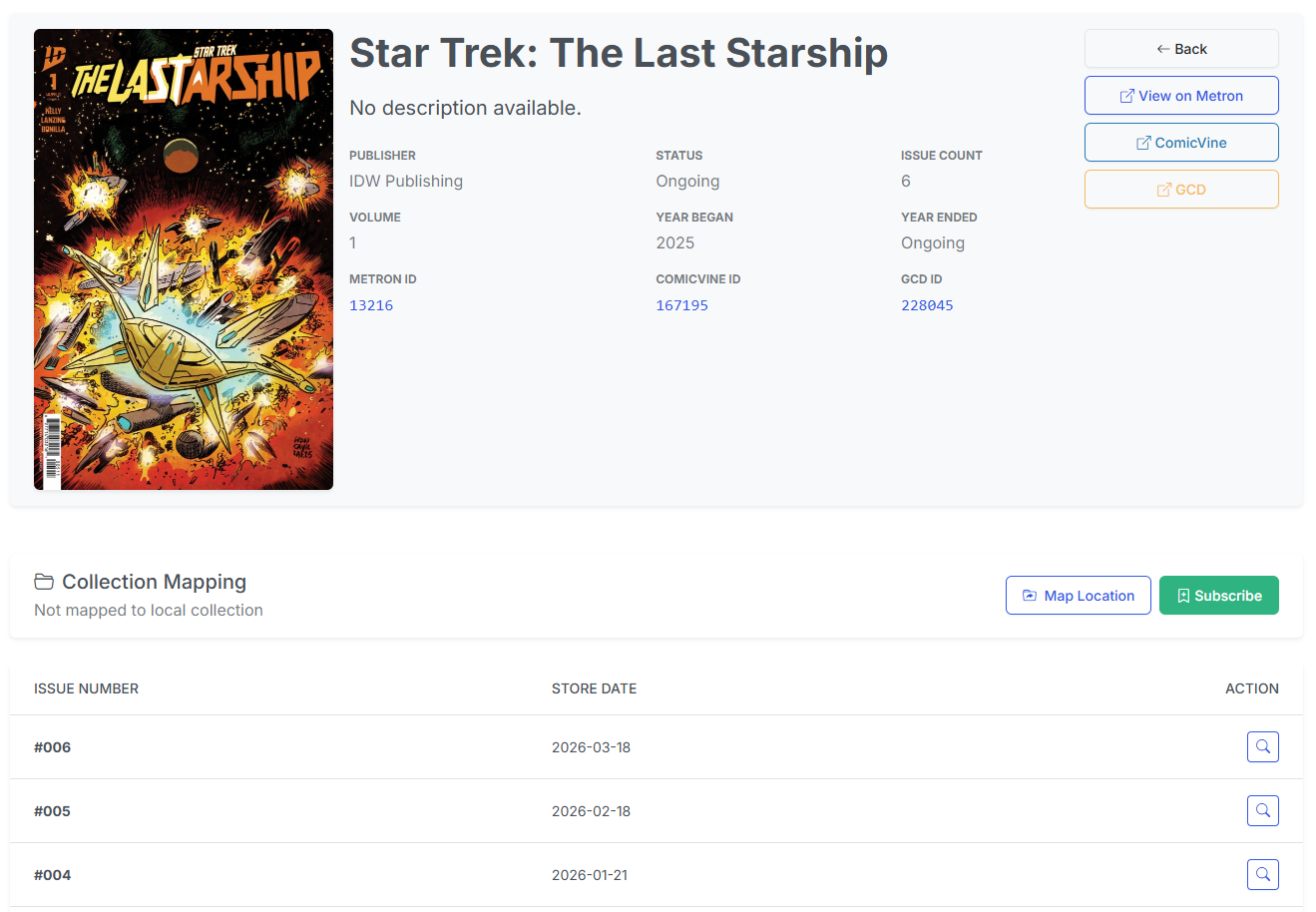
If you are not currently subscribed to the series, you will see two possible actions:
Subscribe
Clicking the Subscribe will prompt you for the location to save the series.
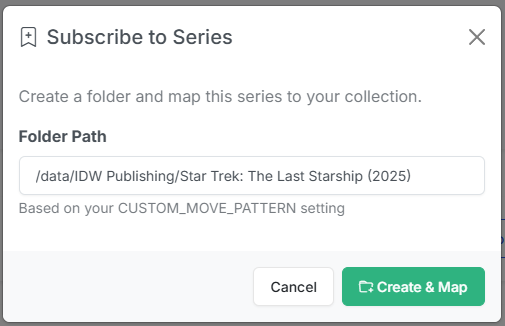
The default path will be based on your CUSTOM MOVE PATTERN setting in the configuration. You can easily modify this if you want a different location for the series.
Note
For example, I prefer
/{Publisher}/{Series} ({Year})
for my series naming but if there are multiple volumes, I'll use
/{Publisher}/{Series}/v{Year}
Once you have selected the location, click the Create & Map button to create the folder and save the subscription. CLU will automatically map issues to the series
Map Location
Clicking the Map Location button will open a modal, allowing you to map the series to an existing folder. This is useful if you already have issues of that series.
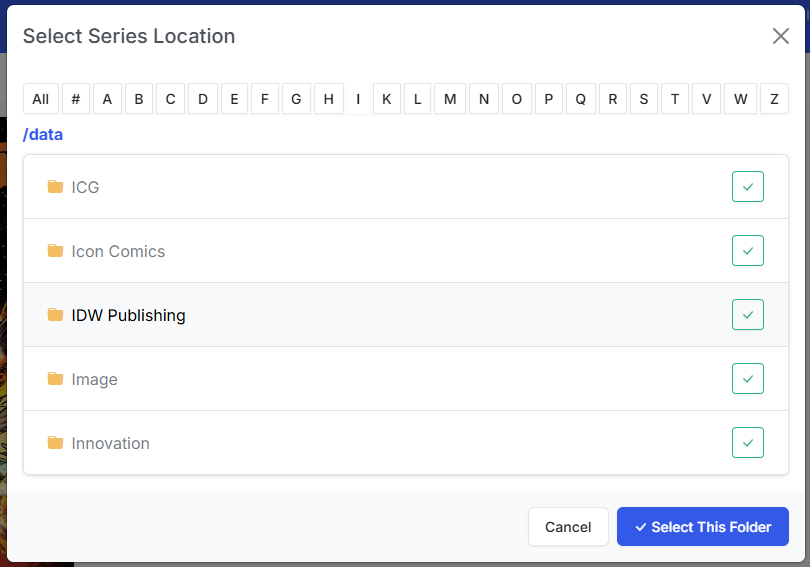
Simply navigate to the folder and click the or the "Select This Folder" button to map the series to the folder. CLU will then refresh and determine how many issues of the series you have.
Once you are subscribed to the series, you will see a different view:
Existing Subscription
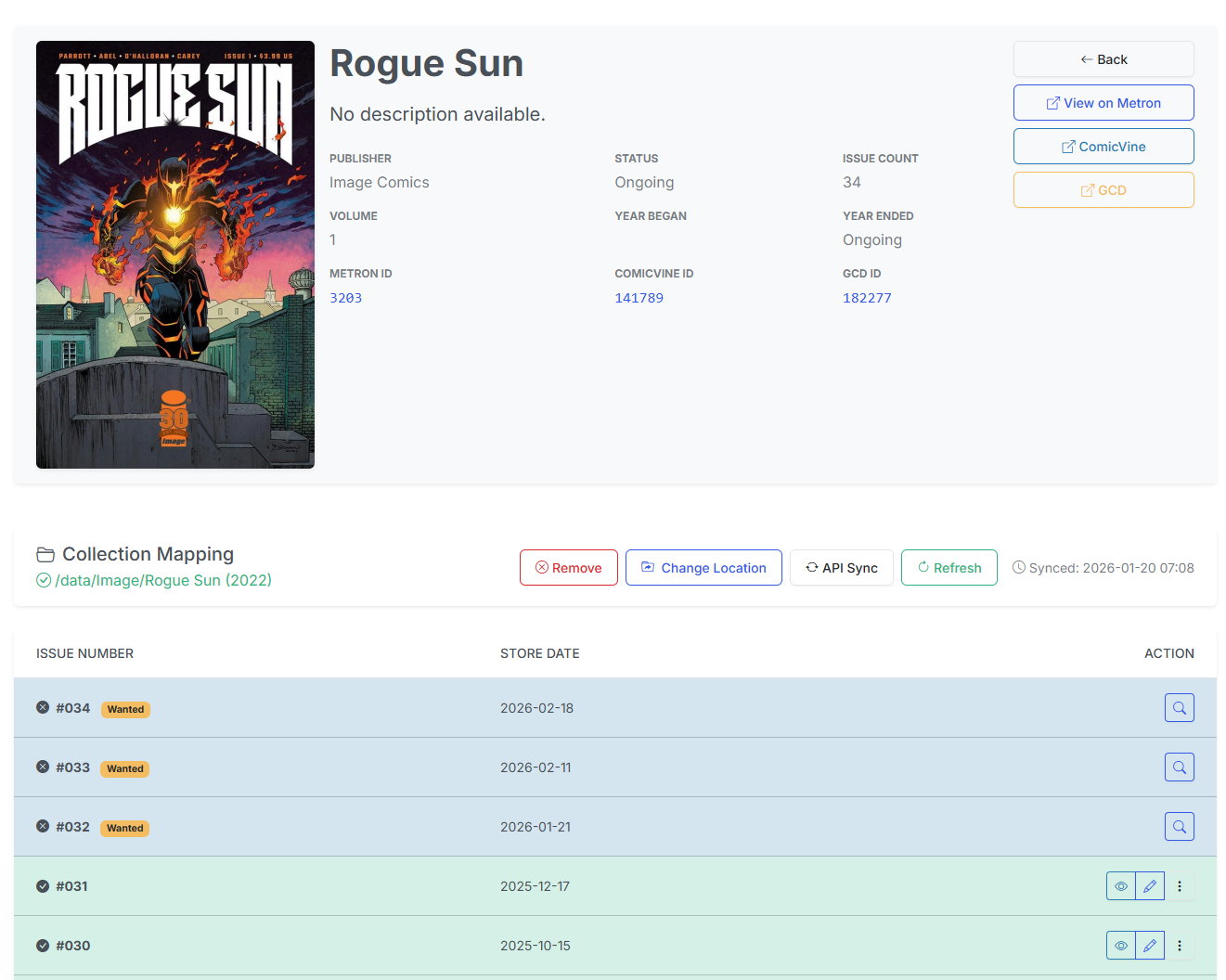
For existing subscriptions, you will see the following options:
Remove
Remove will remove the subscription. No files will be deleted.
Change Location
Change Location will open the same modal as Map Location, allowing you to change the location of the series. Once you confirm the new location, CLU will refresh and determine how many issues of the series you have.
API Sync
API Sync will call the Metron API to get the latest issues and details for the series. This process is run nightly for all series.
Refresh
Refresh will scan the mapped directory to check for existing/missing issues.
Refresh now genuinely refetches (fixed in v6.3)
Refresh skipped CLU's own cache, but the refetch still went through the Metron client library — which answers from its response cache before dispatching any HTTP request, and that cache is stale-forever in practice. A Summary edited on Metron never reached the page.
CLU now purges the cached responses for that series before refetching, so an edit made on Metron shows up.
Refresh also drops the issue bodies now (v6.4)
The v6.3 fix purged the series response but not the individual issue responses — which are the ones carrying creator credits. So a series whose issues Metron had since completed still came back credit-less.
Refresh now drops the cached issue detail for every known issue in the series too. If your files were tagged with no credits, see Credit Backfill for the automatic repair.
The same fix applies to API Sync, which had a second, independent version of the problem: it only ever filled a blank description, so an edited Summary couldn't land through that path either. It now updates a description that already has content.
Monitor
The Monitor toggle controls whether CLU actively searches for this series' wanted issues. When a series is Not Monitored, it's greyed out on the Pull List and excluded from the nightly wanted-issues refresh and from DDL/Usenet auto-download.
Turn this off for series where you already have every issue, know the rest aren't available, or don't want CLU searching on a nightly basis. You can also flip the Monitor flag for many series at once from the Pull List's bulk actions.
On the Stack
If this is enabled and you have On the Stack configured to show on your Library page, this will show the next issue you haven't read in that section.
Wanted / Skipped / Owned
By default, any issues not in the series folder will be marked as "Wanted" and will be searched for in the nightly pull process.
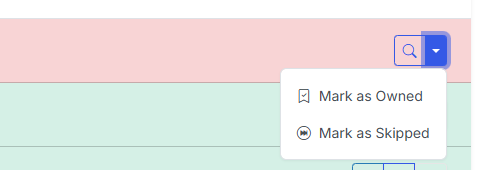
You can mark issues as "Owned" if you have a copy in a trade or another location. This will prevent CLU from searching for the issue in the nightly pull process.
You can mark issues as "Skipped" if you don't want to search for the issue in the nightly pull process.
Multi-Select Actions
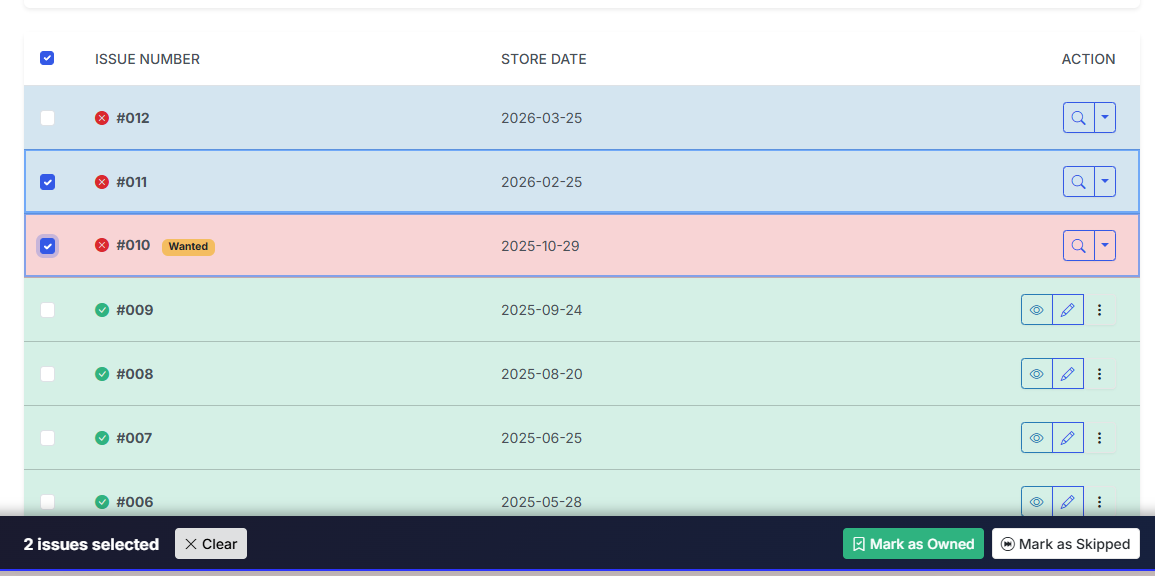
You can select multiple issues and perform the following actions:
- Mark as Owned - Mark multiple issues as owned
- Mark as Skipped - Mark multiple issues as skipped
- Mark as Wanted - Mark multiple issues as wanted (only if they are currently marked as Owned or Skipped)