System and Performance Settings
Settings related to system performance and operations are managed on the System and Performance tab.
Scheduling moved to its own page
Index rebuilds, Metron sync, GetComics auto-download, and the other recurring jobs are no longer configured here — they're on the dedicated Schedules page (also in the gear menu).
Performance & Timeout Settings

These help you manage large files depending on your system. The default settings on an average system will easily handle converting a 2GB CBR to CBZ.
| Setting | Description |
|---|---|
| Operation Timeout (seconds) | Timeout for large file operations (convert, rebuild). Default 3600 (1 hour). Minimum 300 (5 minutes), maximum 7200. |
| Large File Threshold (MB) | Files larger than this get enhanced progress reporting. Default 500 MB (range 100–2000). |
Timezone Settings
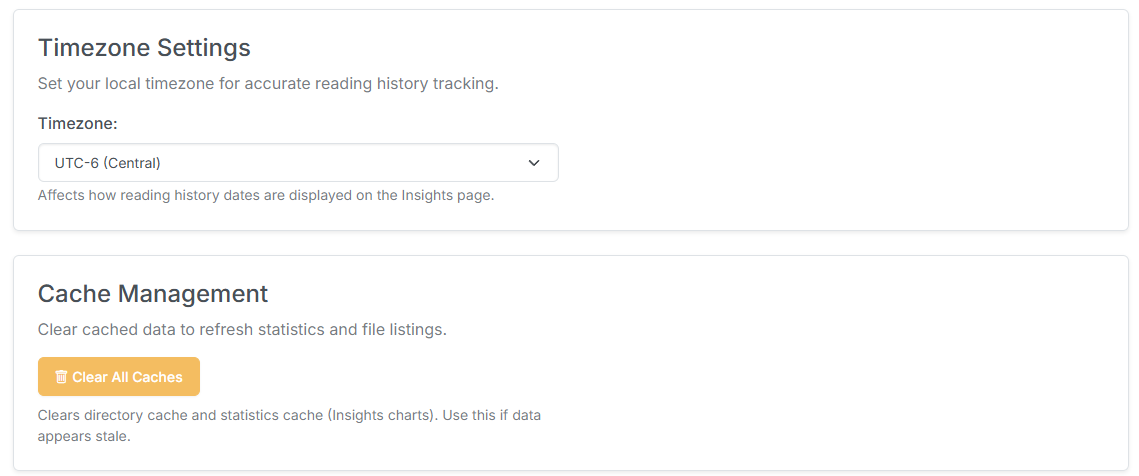
Set your local Timezone so reading history and other date/time information — including Schedules times and the Insights page — display and run correctly for you.
Cache Management
Click Clear All Caches to clear the directory cache and the statistics cache (Insights charts). Use this if data appears stale after moving or editing files.
Missing Issue Configuration
These two settings tune the Missing Issue Check. How much they matter depends on how heavily you use that feature and how your library is structured.
| Setting | Description |
|---|---|
| IGNORED TERMS | Comma-separated words/terms to ignore while scanning for missing issues. Update these and re-run the check to better parse your library. |
| IGNORED FILES | Comma-separated file names to ignore when checking for missing issues (e.g. cover.jpg, cvinfo). |
Logging & Debugging
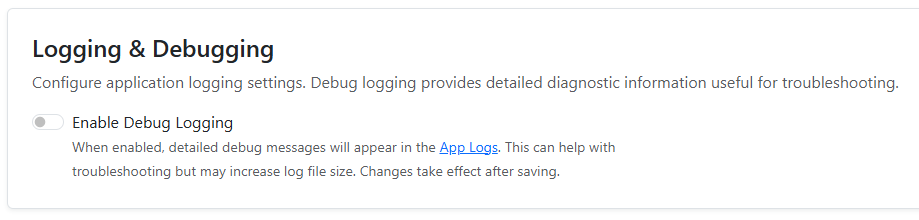
Enable Debug Logging adds detailed diagnostic messages to the App Logs. This helps with troubleshooting but increases log file size. Changes take effect after saving. See Debug Logging for what the output looks like.
Tip
When reporting a problem, enable debug logging, reproduce the issue, then use Download Debug Package on the Logs page to bundle everything up (with secrets redacted).
ComicInfo.XML Update Settings
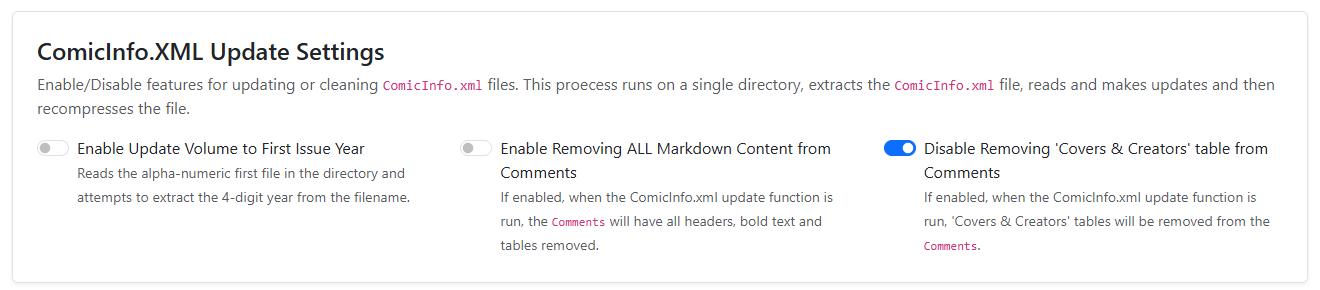
These features update/clean the ComicInfo.xml inside archives. The process runs on a single directory: it extracts the ComicInfo.xml, makes the updates below, and recompresses the file. Consider them experimental — they've been tested the least.
Update Volume to First Issue Year: When there's no volume year in the ComicInfo.xml, this reads the 4-digit year from the alphanumerically-first file in the folder and applies it as the volume year for each file.
Remove ALL Markdown Content from Comments: Removes headers, bold text, and tables from the Comments field of the ComicInfo.xml.
Remove 'Covers & Creators' Table: Removes a Covers & Creators table from the Comments field of the ComicInfo.xml.
Save & Restart
Save System & Performance Settings: Saves any changes made on this tab.
Restart App: Only needed on the initial install and as a quick way to force a restart to reload config/settings changes. The Restart App button lives at the bottom of the Personalization tab.