Delete
CLU allows you to delete individual files, entire directories, or multi-selected batches from the File Manager and Collection views.
Deleting Files
To delete an individual comic file:
- Click the :wastebasket: (Trash) icon on the file row or select Delete from its action menu.
- A confirmation modal appears showing the filename and path.

- Click Delete to confirm. The file is removed from your active library.
Deleting Directories
To delete an entire directory, select Delete from the folder's action menu.
Recursive Deletion
Deleting a directory removes the folder and all files and subdirectories contained within it. You will be prompted to confirm the deletion before any files are touched.
Deleting Multiple Files
You can delete multiple files simultaneously:
- Hold CTRL (or CMD) to select specific files, or SHIFT to select a continuous range of files.

- Right-click any selected file and choose Delete Selected Files.

- A confirmation modal lists all targeted files:
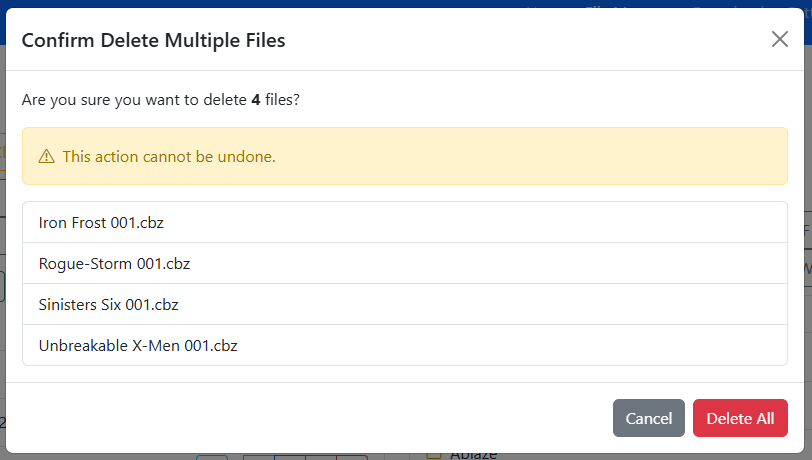
- Click Delete All to process the batch deletion.
Soft Delete & The Trash Can
To protect against accidental deletions and provide a safety net for automated operations, CLU includes a configurable Trash Can system:
- Staging location: When enabled, deleted files are moved to a temporary staging folder (
/cache/trashby default) rather than being permanently destroyed on disk. - Automated file replacements: When resolving duplicate comics or using Find a replacement for a damaged file, the replaced file is routed to the trash, ensuring you can revert if needed.
- Automatic eviction: In File Settings, you can configure the Max Trash Size (MB). When accumulated files exceed this threshold, the oldest items are automatically pruned.
- Restoring files: Trashed files retain metadata pointing to their original directory path, allowing you to restore them directly back into your library if deleted by mistake.
If the Trash Can is disabled in settings, deletions are immediate and permanent.