Download and API Settings
The settings on this page are related to downloading files and connecting to various APIs for information OTHER than metadata. That is covered in the Metadata Providers page.
API Download Configuration
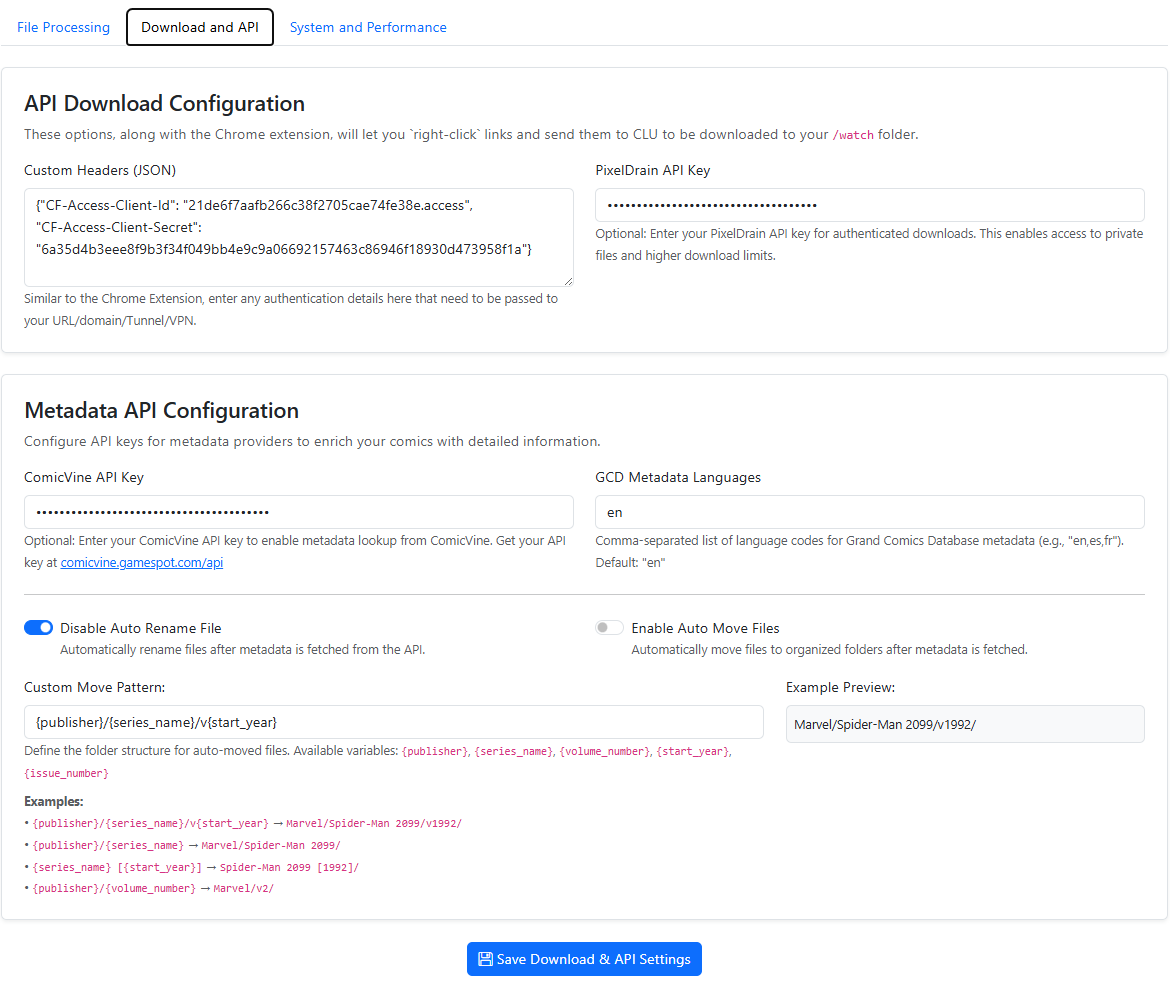
Depending on your authentication/VPN/etc to protect your site, this setting will allow you to pass custom auth variables or anything else in the header. Simply enter the content you need to pass as JSON. These options, along with the Chrome extension, will let you click links and send them to CLU to be downloaded to your /watch folder.
The example provided shows you how to pass Client ID and Client Secret to authenticate to your site.
{
    "CF-Access-Client-Id":"you-client-id",
    "CF-Access-Client-Secret":"your-secret"
}
Download Provider Priority
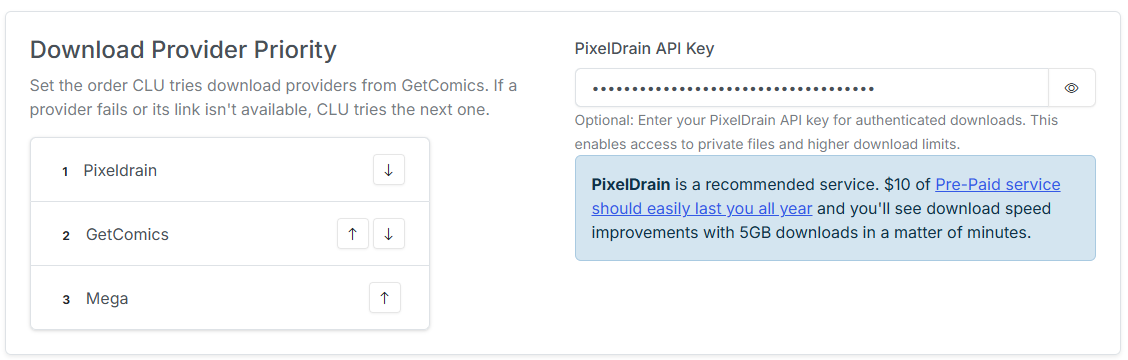
This section allows you to set the priority of the download providers. This is used by the app to determine the order in which to try the download providers when downloading files.
Use the up and down arrows to move the download providers up and down in the list. The higher the provider is in the list, the higher the priority it has. If one provider fails, the download will be retried with the next provider in the list.
Usenet download clients
Usenet (SABnzbd / NZBGet) clients and Newznab indexers are configured on the Download Clients tab, not here. See Usenet Downloads for setup, and Source Priority for choosing between Usenet and GetComics.
PixelDrain API Key
For the File Downloads feature, you can bypass daily limits by entering your API key in this field.
Recommended
PixelDrain is a recommended service. $10 of Pre-Paid service should easily last you all year and you'll see download speed improvements with 5GB downloads in a matter of minutes.
Search Variant Settings
New in v6.0
Search Variant Settings are new in v6.0.
Configure how GetComics handles different publication types and format variants during search matching.
| Setting | Description |
|---|---|
| Publication Types | Comma-separated types that create a different series (e.g. "Batman Annual" is distinct from "Batman"). Example: annual,quarterly. |
| Variant Types | Comma-separated format variants that can optionally be accepted when searching (e.g. TPB, Omnibus, Hardcover editions). |
| One-Shot Folders | Folder names whose files are unrelated single issues (e.g. one-shots). In bulk metadata, each file in these folders is matched individually from its own filename and no cvinfo/series.json is written. Matched by folder name. |
GetComics Wanted Issues Simulation
New in v6.0
The wanted-issues simulation is new in v6.0.
Simulate the full wanted-issues search across all tracked series. It shows exactly what would be searched, found, scored, and downloaded — without making any actual downloads — so you can tune your matching before letting auto-download run.
Optionally enter a Series ID to simulate a single series (leave empty for all), then click Run Simulation. Results are summarized into counts — Searched, Accept, Fallback, No Match, No Results — with a per-issue table (Series, Issue, Year, Decision, Score, Best Match, All Results).
Client API Access
New in v6.0
The client API token is new in v6.0.
Generate a long-lived bearer token for the offline mobile/desktop reader app. The client sends it as Authorization: Bearer <token> on every request to /api/v1/*.
- API Token — click Generate Token to create one; use the show/hide and copy buttons to grab it. Click again to rotate (which revokes the old token).
- Default browse mode for the API — choose how the reader navigates your library by default:
- Metadata view groups by publisher / series read from each file's
ComicInfo.xml. - Filesystem view mirrors the folders under your data directory — the same as the main
/collectionbrowser. - Clients can override per request with
?mode=metadataor?mode=filesystem.
- Metadata view groups by publisher / series read from each file's
Treat the token like a password
Anyone with this token can read your library and reading progress over /api/v1/*. Rotate it to revoke access from old clients.
Per-user tokens
New in v6.2
In a multi-user install, a bearer token identifies a specific person.
The token on this page is the legacy global token. It still works and resolves to the Store Owner, so existing clients keep running untouched.
Alongside it, every account has its own tokens, minted either by that user from My Account or by the owner from Settings → Users:
/api/v1resolves a bearer token to its user, so reading progress, favorites, and library scope land on the right account.- Reader and Clerk tokens are library-scoped. A token can't reach files outside its user's library and folder grants — the same 403s apply as in the browser.
/api/insightsaccepts the same tokens as an optional header. Without one it reports the Store Owner's numbers, so existing tokenless widgets are unchanged.
OPDS does not use tokens at all: OPDS readers authenticate with HTTP Basic Auth using the account's own username and password, and /opds/browse and /opds/to-read filter to that user. In implicit-owner mode OPDS stays auth-free exactly as before.
Komga Reading Sync
Komga sync is shared, not per user
Komga sync targets a single shared server and account, attributed to the Store Owner. In a multi-user install everyone's imported progress lands on that one connection. See Per-User Data.
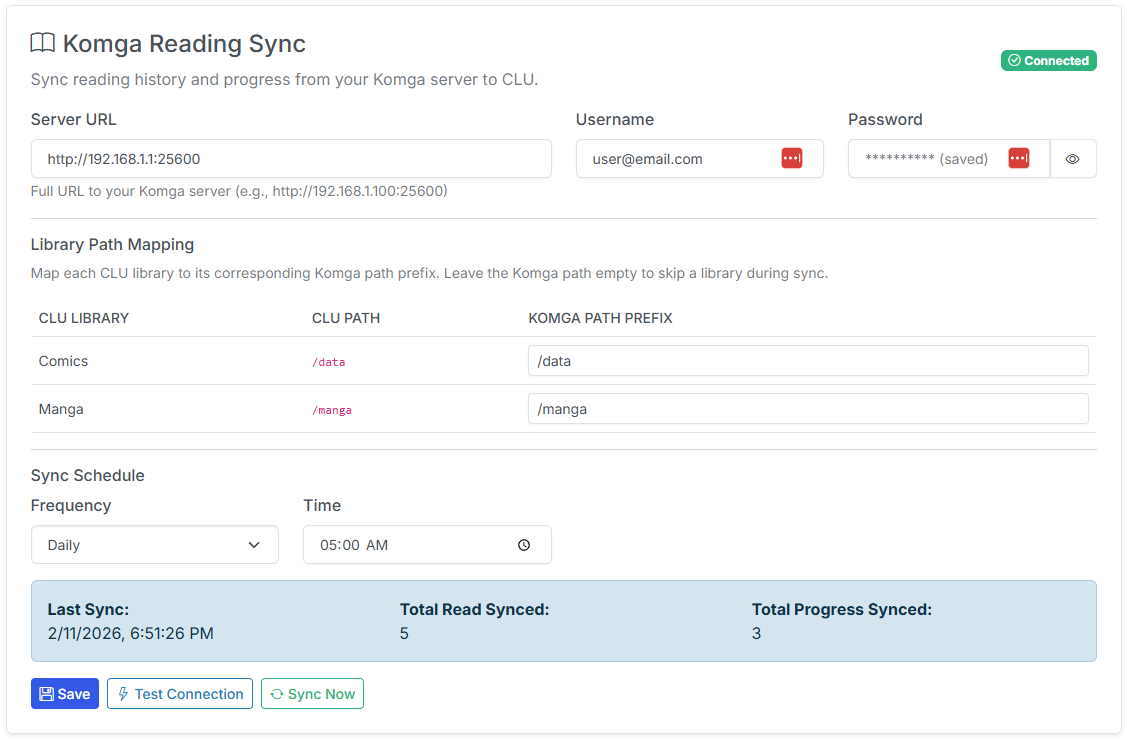
This section allows you to import your reading progress from Komga. Once imported, your reading history will be available in all Library Insights sections. This will allow you to see your reading progress in the context of your entire collection.
Additionally, books you have started in Komga will marked as "In Progress" in CLU and when opened, will resume reading from where you left off in Komga.
Server, Username and Password
These fields are used to connect to your Komga server. The URL should be the base URL of your Komga server. The username and password are the credentials for your Komga server.
Library Path Mapping
In order to correctly map your reading progress, CLU needs to know where your files are located on your Komga server. For each libray you have configured in CLU, simply enter the path to the files on your Komga server. When imported, files will be matched based on the relative path from the library path you provide here.
Sync Schedule
This section allows you to setup a continual sync between CLU and Komga. This is a one way sync from Komga to CLU. It will not update Komga with any changes made in CLU.
Frequency: This will enable the sync between CLU and Komga. This is disabled by default. You can select Daily or Weekly for the sync frequency.
Sync Interval (hours): Set the timing for syncing your reading progress from Komga. The interval is set in hours.
Sync Status
This section will display the status of the sync between CLU and Komga. It will display the Last Sync timestamp, Total Read Issues Synced and Total In Progress Issues Synced.
Save, Test Connection and Sync Now
- Save: Saves the settings in this section.
- Test Connection: Tests the connection to your Komga server. If successful, it will display a Connected indicator.
- Sync Now: Triggers an immediate sync between CLU and Komga. You can trigger a one-time sync anytime you'd like by clicking this button.
Download client groups
New in v6.3
Download clients now belong to a group, and the "only one active client" rule is scoped per group.
| Group | Clients | Docs |
|---|---|---|
usenet |
SABnzbd, NZBGet | Usenet Downloads |
dcpp |
AirDC++ | DC++ Downloads |
Activating AirDC++ does not deactivate SABnzbd. The two sources are independent and can both be active at once — you can only have one active client within each group.
Existing clients backfill to the usenet group automatically on upgrade, so nothing changes for an install that was using Usenet before.
Which sources the nightly auto-download job actually uses is a separate question, governed by Source Priority.